

Rating & Bookmarking Applicants
When you are managing dozens or even hundreds of candidates, you need quick ways to mark your favorites and capture your assessment at a glance. SmoothHiring provides two powerful tools for this: Star Ratings and Bookmarks. Together, they help you organize candidates, surface top talent, and streamline your decision-making process.
Table of Contents
- Overview
- Star Ratings
- Rating Scale Explained
- How to Rate a Candidate
- Bookmarks (Favorites)
- How to Bookmark a Candidate
- Filtering by Rating & Bookmark
- How Ratings Factor into Candidate Rankings
- Ratings vs. Fit Scores
- Best Practices
- Frequently Asked Questions
Overview
SmoothHiring gives you two complementary tools for organizing candidates:
| Tool | Purpose | Scale | Visibility |
|---|---|---|---|
| Star Rating | Quantitative assessment of a candidate | 1–5 stars | Visible to all team members |
| Bookmark | Quick-access flag for candidates you want to revisit | On/Off toggle | Personal to you |
Both tools are accessible from the applicant list view and the applicant profile, making them easy to use whether you are scanning through candidates quickly or doing a deep-dive review.
Star Ratings
Star ratings let you assign a 1-to-5 star score to any candidate. This is your personal or team assessment of how strong a candidate is, independent of the automated Fit score that SmoothHiring calculates.
Where Ratings Appear
- Applicant List (Table View): Each candidate row shows their current star rating. You can click to change it directly.
- Applicant List (Data Grid View): Ratings appear in the rating column.
- Applicant Profile: The candidate's rating is displayed in their profile details.
- Pipeline View: Ratings are visible on candidate cards.
Rating Scale Explained
SmoothHiring uses a 5-star rating system with the following labels:
| Stars | Label | Suggested Use |
|---|---|---|
| ⭐ (1) | Very Poor | Candidate does not meet basic requirements |
| ⭐⭐ (2) | Poor | Candidate has significant gaps |
| ⭐⭐⭐ (3) | Average | Candidate meets some requirements |
| ⭐⭐⭐⭐ (4) | Good | Strong candidate worth serious consideration |
| ⭐⭐⭐⭐⭐ (5) | Excellent | Top-tier candidate — prioritize for advancement |
A rating of 0 stars (no rating) means the candidate has not been evaluated yet.
How to Rate a Candidate
From the Applicant List
- Navigate to the applicant list for a job.
- Locate the candidate row in the table or data grid view.
- Find the star rating component in the candidate's row.
- Click on the desired number of stars (1–5).
- The rating is saved immediately — you'll see a brief "Saving…" indicator followed by a success confirmation.
- To change a rating, simply click a different star value.
From the Applicant Profile
- Open the candidate's full profile.
- Locate the star rating near the candidate's information.
- Click the desired number of stars.
- The rating is saved automatically.
Tip: Rating from the list view is faster when reviewing many candidates. Use the profile view for more considered assessments after a deeper review.
Clearing a Rating
To remove a rating entirely, click the same star value that is currently selected. For example, if a candidate is rated 3 stars, clicking the third star again will clear the rating back to 0 (unrated).
Bookmarks (Favorites)
Bookmarks are a quick way to flag candidates you want to come back to. Think of them as your personal shortlist within a job's applicant pool.
How Bookmarks Work
- A bookmark is a simple on/off toggle — a candidate is either bookmarked or not.
- Bookmarks are indicated by a bookmark icon: a filled gold bookmark (🔖) when bookmarked, or an outlined bookmark when not.
- Bookmarks persist until you remove them.
Where Bookmarks Appear
- Applicant List (Table View & Data Grid): A bookmark icon appears on each candidate row.
- Pipeline View: Each candidate card has a bookmark icon in the lower-right area.
- Applicant Profile: The bookmark status is visible in the candidate details.
How to Bookmark a Candidate
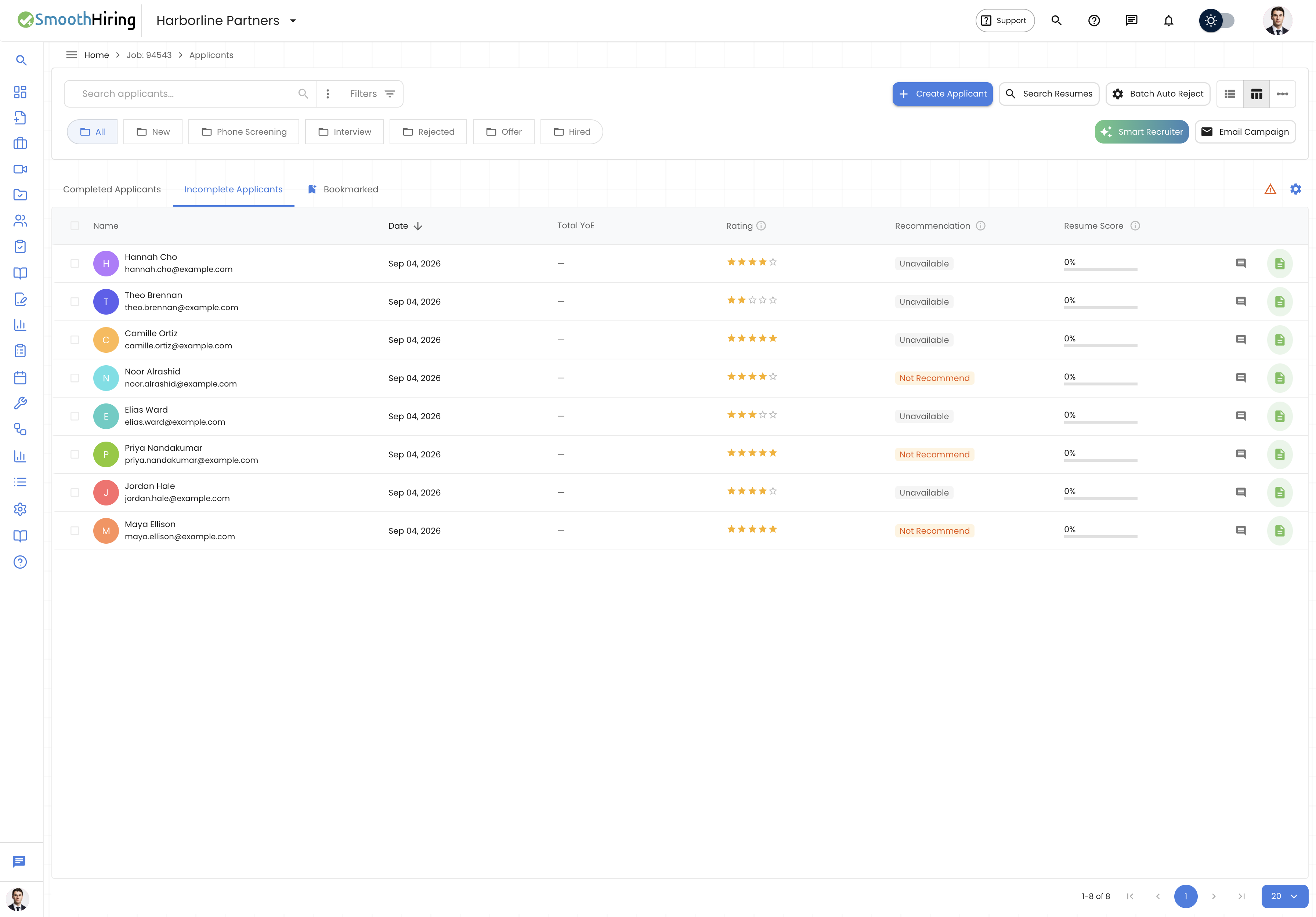
From the Applicant List
- In the applicant list, find the candidate you want to bookmark.
- Click the bookmark icon on their row.
- The icon changes from an outlined bookmark to a filled gold bookmark.
- To remove the bookmark, click the icon again.
From the Pipeline View
- In the pipeline view, find the candidate card.
- Click the bookmark icon at the bottom of the card.
- The bookmark toggles on or off.
From the Applicant Profile
- Open the candidate's full profile.
- Click the bookmark icon near the candidate's information.
- The bookmark is toggled immediately.
Filtering by Rating & Bookmark
One of the most valuable aspects of ratings and bookmarks is the ability to filter your applicant list based on these values.
Filtering by Rating
- Open the applicant list for a job.
- Click the Filters button in the toolbar.
- In the filters panel, look for the Rating filter.
- Select one or more rating values (e.g., 4 stars and 5 stars) to show only candidates with those ratings.
- Click Apply to filter the list.
- Active filter chips appear above the list showing your current filters. Click the × on any chip to remove that filter.
Filtering by Bookmark
- Open the applicant list for a job.
- Click the Filters button in the toolbar.
- Look for the Bookmark filter option.
- Enable it to show only bookmarked candidates.
- Click Apply.
Combining Filters
You can combine rating and bookmark filters with other available filters:
- Stage — Filter by pipeline stage (New, Screening, Interview, etc.)
- Fit — Filter by automated Fit score (Strong Fit, Fit, Weak Fit, Distortion)
- Keywords — Search within candidate data
- Rating — Your star ratings
This lets you create powerful views like "Show me all bookmarked candidates rated 4+ stars who are in the Interview stage."
How Ratings Factor into Candidate Rankings
It's important to understand the relationship between your manual star ratings and SmoothHiring's automated scoring:
Automated Scoring (Fit Score)
SmoothHiring automatically evaluates each candidate based on:
- Survey results (behavioral assessment)
- Prescreening question answers
- Resume analysis
- Job Fingerprint matching
This produces a Fit Score: Strong Fit, Fit, Weak Fit, or Distortion.
Manual Star Ratings
Star ratings are your team's subjective evaluation layered on top of the automated score. They let you capture human judgment that the algorithm may not account for, such as:
- Cultural fit impressions from interviews
- Reference check results
- Portfolio or work sample quality
- Communication skills observed during interactions
Using Both Together
| Scenario | Automated Fit | Star Rating | Action |
|---|---|---|---|
| Strong candidate all around | Strong Fit | 4–5 stars | Fast-track to offer |
| Algorithm loves them, team has concerns | Strong Fit | 1–2 stars | Discuss with team, investigate concerns |
| Team loves them, algorithm is cautious | Weak Fit | 4–5 stars | Consider — human insight may outweigh algorithm |
| Both agree they're not a fit | Weak Fit | 1–2 stars | Move to rejection |
Ratings vs. Fit Scores
| Feature | Star Rating | Fit Score |
|---|---|---|
| Who assigns it | Your team (manual) | SmoothHiring (automated) |
| Scale | 1–5 stars | Strong Fit / Fit / Weak Fit / Distortion |
| Based on | Human judgment | Survey + Screening + Resume analysis |
| Can be changed | Yes, anytime | Recalculated when new data arrives |
| Filterable | Yes | Yes |
| Purpose | Capture team consensus | Objective data-driven assessment |
Best Practices
Establish a Rating Convention
Before your team starts rating candidates, agree on what each star level means for your organization:
- 5 stars: Must-interview, top of the list
- 4 stars: Strong candidate, worth pursuing
- 3 stars: Meets requirements, consider if pipeline is thin
- 2 stars: Below expectations, only reconsider if needed
- 1 star: Does not meet requirements
Use Bookmarks as a Personal Shortlist
- Bookmark candidates you want to discuss in your next hiring meeting.
- Bookmark profiles you want to compare side-by-side.
- Bookmark candidates you're waiting to hear back from (reference checks, assessments).
- Remove bookmarks after you've taken action.
Rate After Key Milestones
Rate candidates at consistent points in your process:
- After initial resume review — first impression rating
- After assessment results — adjust based on data
- After interview — final rating reflecting full picture
Combine Ratings with Comments
For context, leave a comment whenever you assign a notable rating. A 5-star rating with a comment like "Exceptional technical skills and great cultural fit — recommend fast-tracking" is far more useful than the rating alone.
Frequently Asked Questions
Can different team members give different ratings? Currently, a candidate has a single rating value. When a team member changes the rating, it updates for everyone. If you need to capture individual assessments from multiple reviewers, use comments or scorecards.
Do ratings affect the automated Fit score? No. Star ratings are completely independent of the automated Fit score. They do not influence the algorithmic assessment.
Are ratings preserved when a candidate is ported to another job? When a candidate is ported to another job, a new applicant profile is created. The rating on the original profile remains unchanged, and the new profile starts unrated.
Can I sort the applicant list by rating? Yes. You can sort the applicant list by rating in both ascending and descending order to quickly find your highest or lowest rated candidates.
Can I export ratings? Ratings are included when you export applicant data from the system.