

Setting Up Your Company Information
The Company Details page allows Admins and Owners to manage your organization's public-facing information. This information appears on your job postings, careers page, and candidate communications — so keeping it accurate and complete is essential for attracting top talent.
Navigating to Company Details- Direct URL: /employer/settings/account/company-information
- Navigation: Click Settings in the left sidebar > Company Details tab.
Note: Only users with Owner or Admin roles can edit Company Details. Other roles may see this tab as disabled or hidden based on access controls.
Company Information Fields
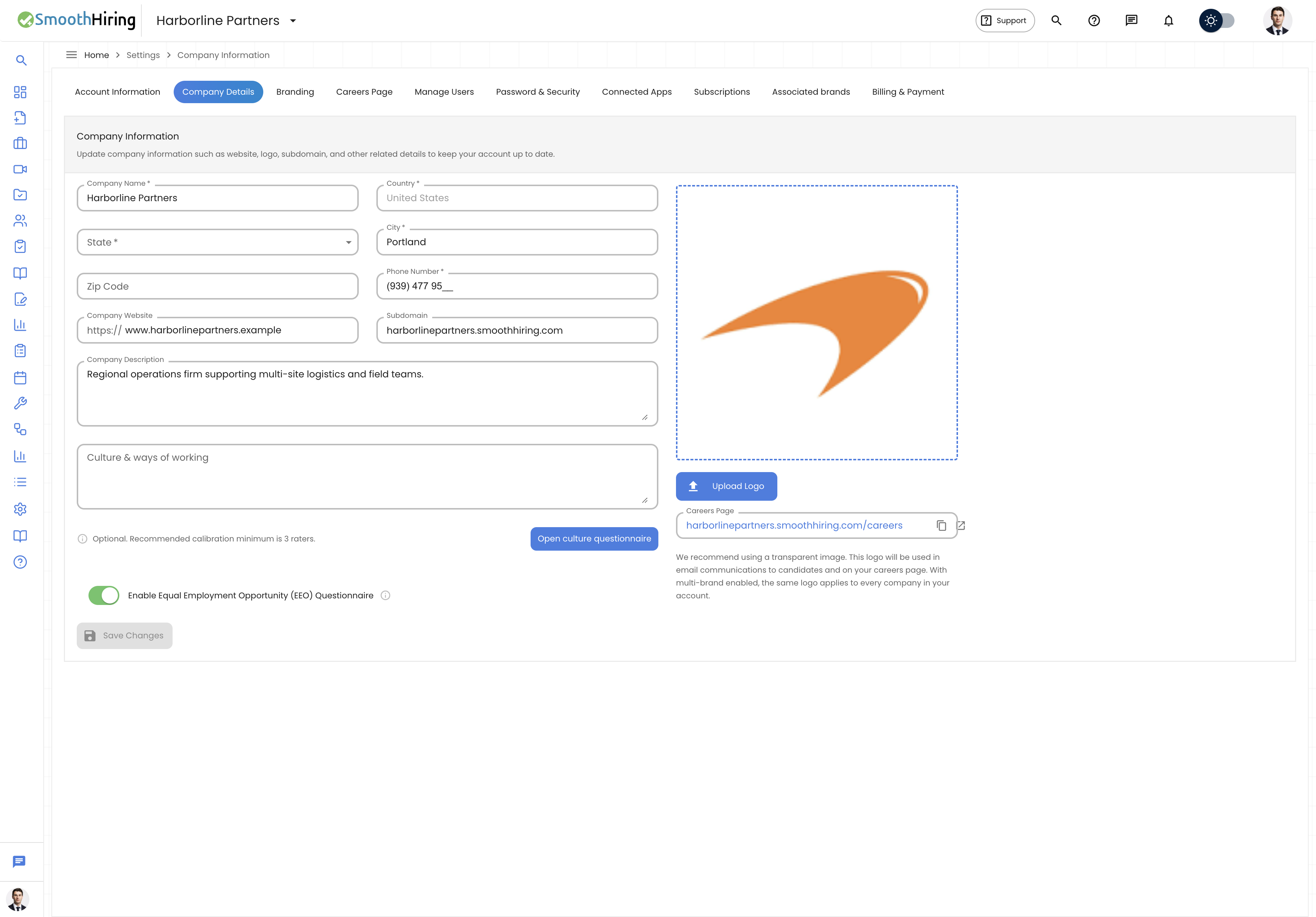
| Field | Description | Required |
|---|---|---|
| Company Name | Your organization's legal or trade name | Yes |
| Website | Your company website URL | Recommended |
| Phone Number | A contact phone number (formatted by country) | Recommended |
| Country | The country where your company is headquartered | Recommended |
| State/Province | The state or province of your headquarters | Recommended |
| City | The city of your headquarters | Recommended |
| Company Description | A rich-text description of your organization for job postings | Recommended |
| Phone Area Code | Automatically determined by your selected country | Auto |
Updating Company Information
Basic Details
- Navigate to Settings > Company Details.
- Edit any of the fields listed above.
- Click Save to apply your changes.
- A success notification confirms the update.
Company Description
The Company Description field supports rich text formatting. It appears on:
- Your job postings
- Your careers page
- Offer letters and candidate communications
Write a compelling description that highlights your company culture, mission, and what makes you an attractive employer.
Website URL
Enter your company website. SmoothHiring will:
- Validate the URL format
- Use it to generate your careers page subdomain
- Display it on job postings for candidate research
Tip: Make sure your website URL is accurate — it's used to derive your careers page subdomain.
Company Logo
Uploading a Logo
- Click the Upload Logo button.
- Select an image file (JPEG or PNG).
- The logo is automatically compressed and uploaded.
- It appears immediately across the platform.
Where Your Logo Appears
- Job postings
- Careers page header
- Candidate application portal
- Email communications to candidates
- Interview invitations
Phone Number Formatting
Phone numbers are automatically formatted based on your selected country:
- United States/Canada: +1 (XXX) XXX-XXXX
- Other countries: International format with country code
Select your country first, then enter the phone number for proper formatting.
Careers Page Subdomain
Based on your company website, SmoothHiring generates a careers page subdomain. You can:
- Copy the subdomain URL to share it
- Open it in a new tab to preview
- Use it on your company website to direct candidates to your job listings
Culture Fit Profile
If Culture Fit is enabled for your organization, a Culture Profile Chart may appear on the Company Details page showing your organization's calibrated culture dimensions. This data is used in candidate matching algorithms.
Company Setup Progress
On the Dashboard, a Company Setup Progress bar tracks completion based on:
- Company name
- Website
- State/Province
- City
- Company description
- Company logo
- Phone number
Completing all fields brings your company setup to 100%.
Additional Settings Tabs
From the Company Details area, Admins and Owners can also access:
| Tab | Description |
|---|---|
| Culture Fit | Calibrate your organization's culture dimensions (if enabled) |
| Branding | Customize colors, fonts, and visual appearance |
| Careers Page | Design and customize your public careers page |
| Associated Brands | Manage multiple brands (if multi-brand addon is active) |
Saving and Validation
- All changes require clicking Save.
- The website field validates URL format.
- Phone number validates based on the selected country format.
- If validation fails, error messages appear inline explaining the issue.
Tips
Tip: A complete Company Details profile with a logo and compelling description significantly improves candidate application rates.
Tip: Keep your city and state updated if your company has relocated — this affects job posting location data.
Tip: The company description supports rich text. Use bullet points, bold text, and structure to make it scannable for candidates.
Related Pages
- Account Information — Your personal profile settings
- Connected Apps — Integrate with external services
- Dashboard — Company setup progress indicator
- Manage Users — Team management