

How to Connect Microsoft Teams to SmoothHiring
Connect Outlook Calendar and Microsoft Teams so SmoothHiring can attach Teams meeting links to interview events.
Adding the App
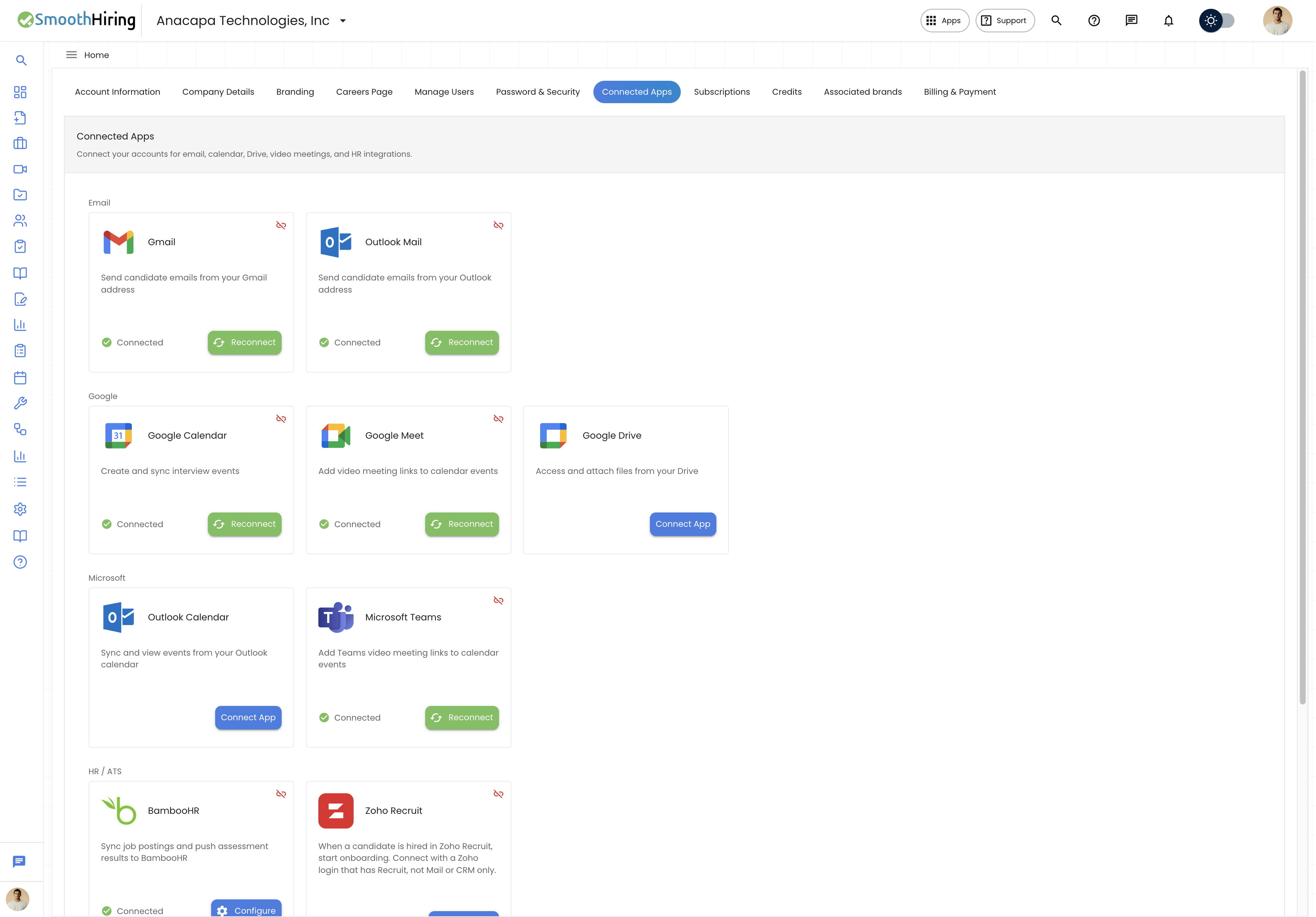
Microsoft Teams links are created through your Outlook Calendar connection.
Prerequisites
- A SmoothHiring employer account with access to Settings → Account → Connected Apps
- A Microsoft 365 or Outlook account with calendar access
- Permission to authorize third-party apps on that Microsoft account
Add the app from SmoothHiring
- Go to Settings → Account → Connected Apps.
- Connect Outlook Calendar first (required for Teams).
- Find Microsoft Teams under the Microsoft section.
- Click Connect and sign in to Microsoft if prompted.
- Review the requested permissions and click Allow.
- You are returned to SmoothHiring. Microsoft Teams shows as Connected.
SmoothHiring never stores your Microsoft password. After you authorize, only OAuth tokens for your account are stored so SmoothHiring can create calendar events and Teams meeting links.
If adding the app fails, see Troubleshooting.
Usage
Use Microsoft Teams when you schedule video interviews.
Prerequisites
- Outlook Calendar is connected
- Microsoft Teams shows as connected
- You are scheduling a Video interview
Schedule a Teams interview
- Open the candidate's Applicant Profile.
- Click Schedule Interview.
- Select Video as the interview type and Microsoft Teams as the meeting type.
- Set the date, time, duration, attendees, and notes.
- Click Schedule.
SmoothHiring then:
- Creates an Outlook Calendar event
- Attaches a Microsoft Teams meeting link
- Includes the Teams link in the candidate invitation
- Lets participants join from Teams, the browser, or the calendar invitation
Microsoft Teams features
- Automatic link generation — A Teams link is added when the interview is scheduled
- Calendar sync — The event and Teams link appear on the connected Outlook Calendar
- Candidate notifications — Candidates receive the Teams link in the interview invitation email
- Meeting management — Reschedule or cancel in SmoothHiring to update or remove the calendar event
If Microsoft Teams is not connected
Connect Outlook Calendar and Microsoft Teams, then reschedule the interview, or add a meeting link manually.
Removing the App
Remove Microsoft Teams from SmoothHiring, from your Microsoft account, or both.
Remove from SmoothHiring
- Go to Settings → Account → Connected Apps.
- Find Microsoft Teams under the Microsoft section.
- Click Disconnect and confirm.
This removes the Teams connection. Outlook Mail and Outlook Calendar stay connected unless you disconnect those separately.
Remove from a Microsoft account
- Sign in to your Microsoft account and open Microsoft account → Apps and services.
- Find SmoothHiring.
- Select it and click Remove.
Implications of removal
- SmoothHiring will no longer create Teams meeting links
- Microsoft Teams will no longer appear as a meeting type until you connect again
- Existing Teams links for interviews already scheduled stay valid until those meetings end or you delete the events in Outlook
- Cancelling an interview in SmoothHiring only removes the calendar event if Outlook Calendar is still connected
How user data is handled after removal
- SmoothHiring clears the stored Teams connection for that user
- SmoothHiring stops creating Teams meeting links on that user's behalf
- Interview records, notes, and invitation history remain in SmoothHiring
- Meeting details already saved on a scheduled interview remain so attendees can still join
- You can connect Microsoft Teams again at any time from Connected Apps
Troubleshooting
| Issue | What to do |
|---|---|
| Connect fails or you return with an error | Sign out of Microsoft in the browser, then connect Outlook Calendar and Teams again |
| Teams is not connected after Calendar | Connect Microsoft Teams on Connected Apps after Outlook Calendar is connected |
| Interview saved without a Teams link | Confirm Outlook Calendar and Teams are connected, then reschedule |
| Authorization expired | Disconnect and connect Microsoft Teams again |
| Cannot remove access | Remove SmoothHiring from Microsoft apps and services, then disconnect in Connected Apps |
Calendar sync details are in Email & Calendar Integration.
Contact Support
- In-app chat in the bottom-right corner of SmoothHiring
- Email: support@smoothhiring.com
- First response: typically within 1 business day
- Hours: Monday–Friday, 9:00 AM – 6:00 PM Eastern Time
See Contact Support for phone support, plan-based response times, and what to include in a request.
Related Pages
- Zoom Video — Zoom interviews
- Google Meet — Meet interviews
- Email & Calendar Integration — Outlook Calendar setup