

Shift report
Shift Report is the month’s coverage, scheduled hours, clocked hours, no-shows, and late punches. Scheduled hours are planned. Clocked hours come from punches. Timesheet hours are approved time. This report is not payroll. Publishing and clocking do not create pay.
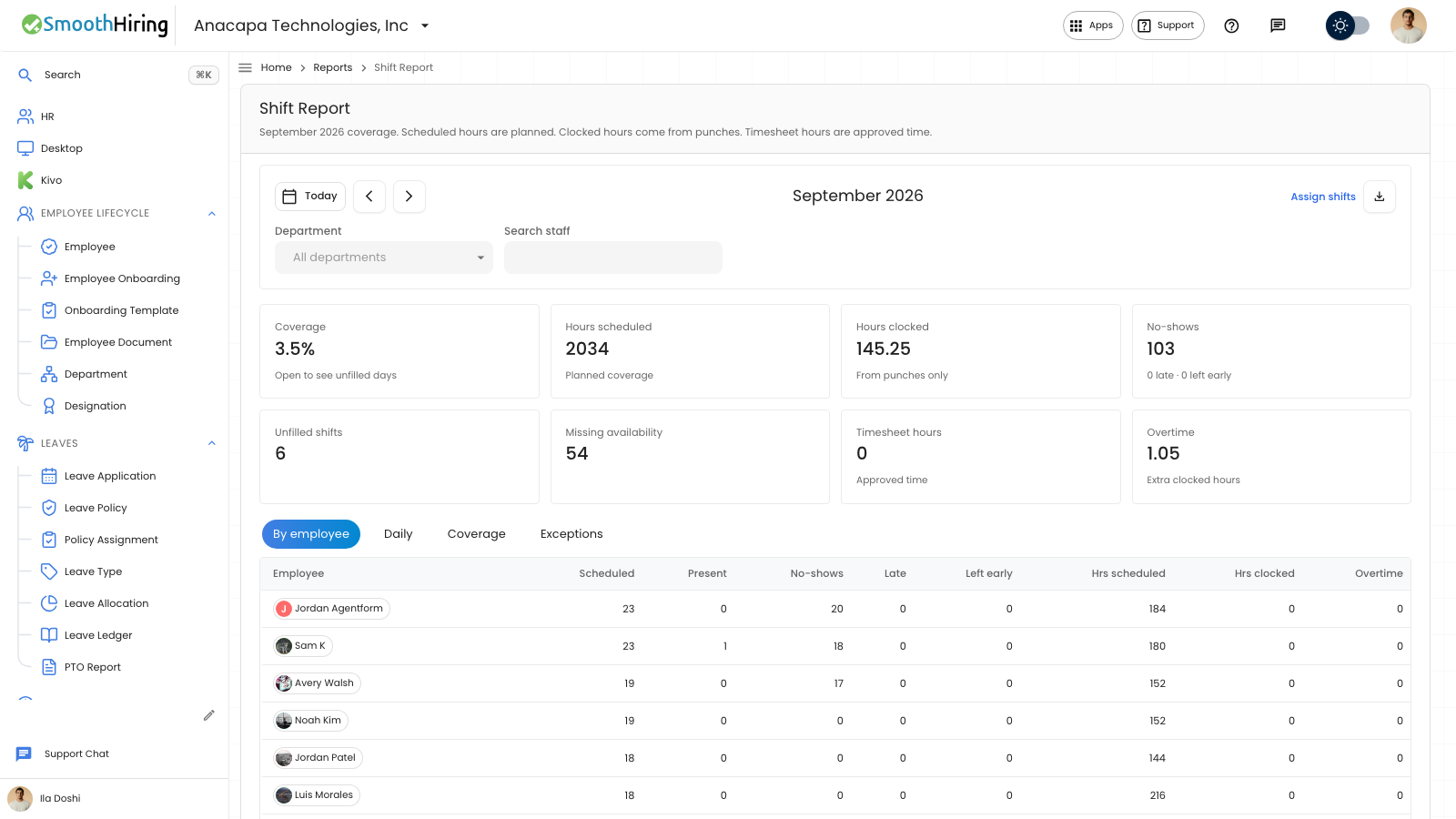
- Open Shift Report under Shift & Attendance.
- Move to the month. Set Department or Search staff if you want a smaller list.
- Read the cards: Coverage, Hours scheduled, Hours clocked, No-shows, Unfilled shifts, Missing availability, Timesheet hours, and Overtime.
- Choose a card to open its list, then choose Close. Or use the tabs By employee, Daily, Coverage, and Exceptions.
- Choose Export CSV to download the employee rows. Assign shifts opens the roster for that month.
What you should see
Hours scheduled says planned coverage. Hours clocked says the hours are from punches only. Overtime says extra clocked hours. No-shows includes a line for late punches and people who left early.
By employee lists scheduled days, present days, no-shows, late, left early, hours scheduled, hours clocked, and overtime. Daily lists the same kinds of counts by date. A holiday on that tab is marked Holiday.
If something looks wrong
By employee says No shifts assigned this month. Assign people on Assign shifts, or pick another month.
A card list says Nothing to inspect when that metric has no rows for the current filters. Clear Search staff or Department and open the card again.