

Add an employee
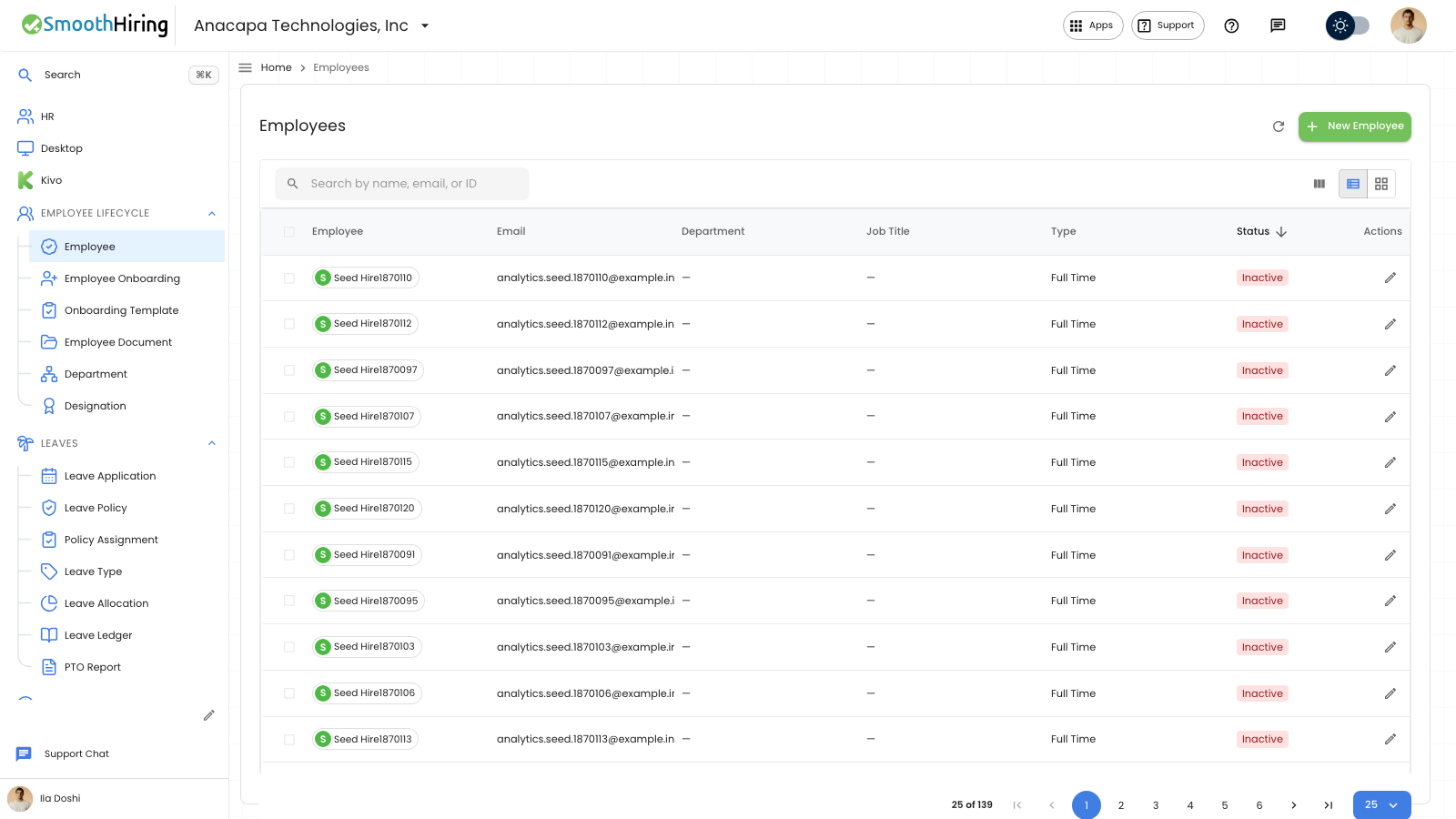
An employee record is the person you hire, schedule, and pay. Open Employee under Employee Lifecycle. The list is titled Employees.
- Click New Employee.
- On Overview, under Basic Information, enter First Name, Last Name, Gender, Date of Birth, Status, and Date of Joining. Those fields are required. Status starts as Active. Employment Type starts as Full Time.
- Under Company Details, choose Department, Designation, and Reports To when those records already exist. Reports To is another employee.
- Click Create Employee.
What you should see
A note says “Employee created,” and the form stays open under the person’s name. The Employees list shows Employee, Email, Department, Job Title, Type, and Status. Search reads “Search by name, email, or ID.” An empty list says “Add team members to manage profiles, documents, and HR records in one place,” with New Employee.
If something looks wrong
Create Employee stays on the form and names the missing fields when a required field is empty. Fill First Name, Last Name, Gender, Date of Birth, Status, and Date of Joining, then try again.
Department or Designation has no choices until those lists have records. Add the department or designation, then return to Company Details.