

This page is for managers. Upload Attendance brings in a CSV. You paste the rows. This does not create pay.
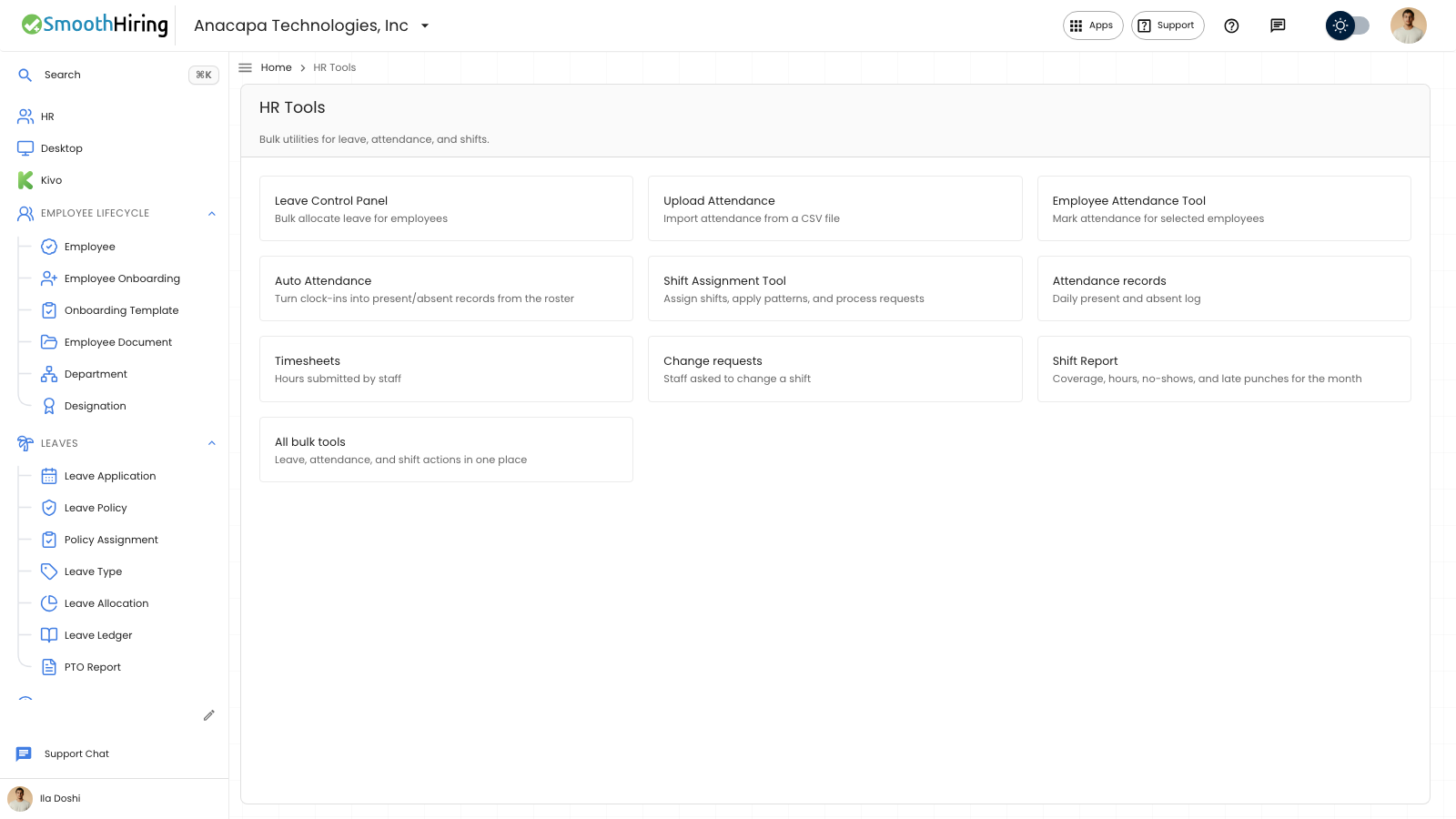
- Open HR Tools. It is on the Shift & Attendance card. The page title is HR Tools, and the subtitle is Bulk utilities for leave, attendance, and shifts.
- Open Upload Attendance. The card says Import attendance from a CSV file.
- Set From and To. Choose Download template if you need the file for that range.
- Paste the rows into Paste CSV.
- Choose Import Now, or Import in background if you want it to run as a job.
What you should see
The page subtitle says the date range is for the template, and that you paste rows below to import.
The template starts with Notes:, Do not change column headers, and Status: Present, Absent, On Leave, Half Day, Work From Home. The columns are ID, Employee ID, Employee Name, Date, Status, and Notes.
Import Now shows Imported and the number of rows. Import in background shows a queued notice, then Job and a number, with a status such as Pending, Completed, or Failed.
If something looks wrong
Download template stays off until From and To are filled and From is on or before To. Empty dates show Required. When To is before From, To shows Must be on or after From.
Import Now and Import in background stay off until Paste CSV has rows. If the import fails, the notice is Import failed or Async import failed. Fix the rows and try again.
The other cards on HR Tools are Leave Control Panel, Employee Attendance Tool, Auto Attendance, Shift Assignment Tool, Attendance records, Timesheets, Change requests, and Shift Report.