

Open shifts on my phone
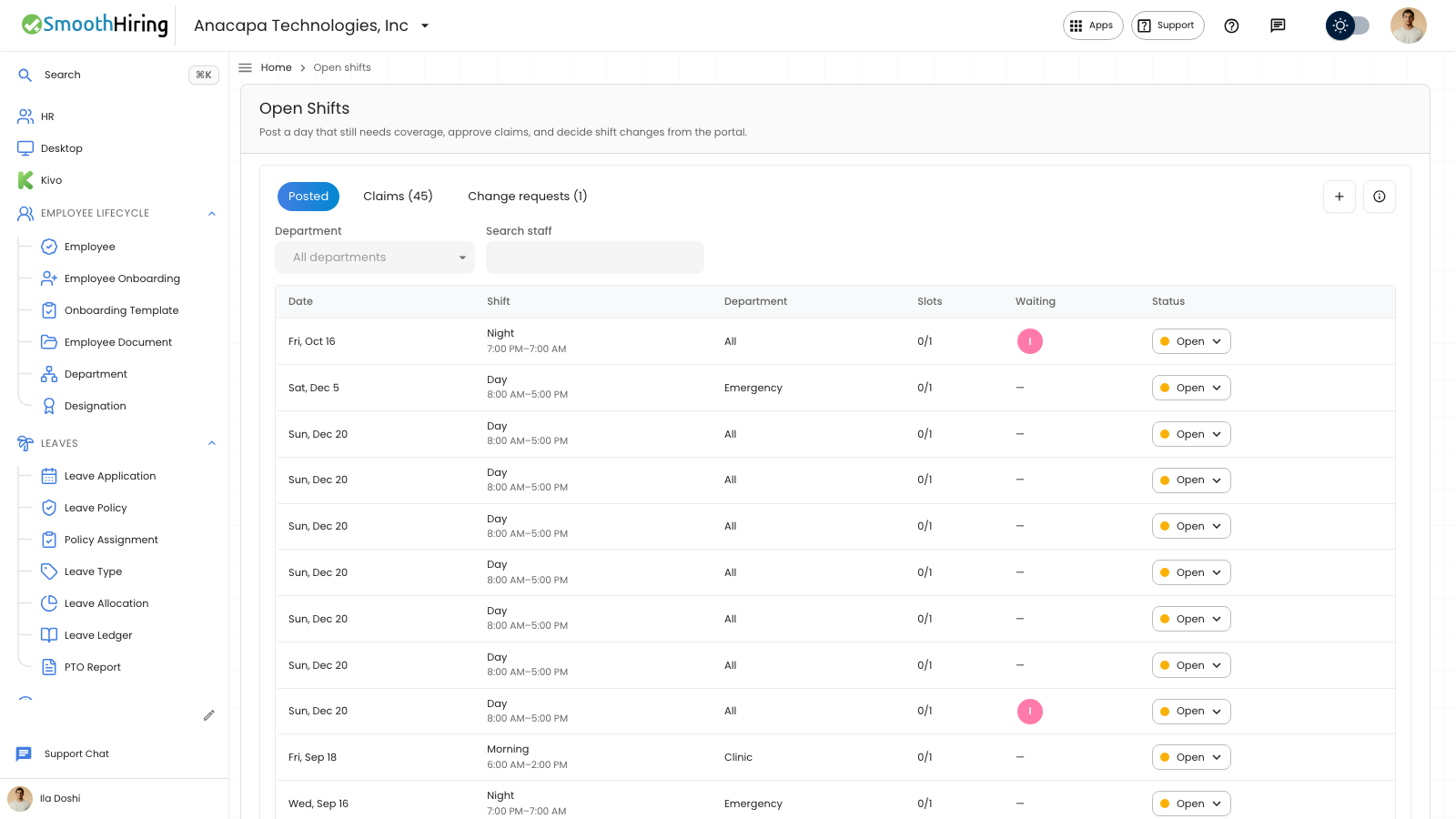
An employee claims open shifts from the employee portal, including on a phone. The page title is Open shifts, and the subtitle is Claim a shift that still needs coverage. Publishing a schedule does not create pay.
- Open Open shifts.
- Read Date, Shift, Department, and Slots. The note says your department lead will see the claim.
- Choose Claim.
On Home, Open shifts lists the next upcoming rows, how many spots are left, Claim, and View all. View all opens this page.
What you should see
The confirmation says Shift claim submitted for approval. The manager’s Claims tab shows the claim as Waiting until they approve or decline it. See Claim an open shift.
Nothing posted for you says No open shifts, and There are no open shifts in your department right now. Home says None in your department right now.
If something looks wrong
Claim stays unavailable on a past date. On Home, Claim stays unavailable when no spots are left.
If Open shifts is missing, open Settings, then Employee portal, and turn on Open shifts. The helper says shifts they can claim. Choose Save. The confirmation says Employee portal saved. A manager still posts from Open Shifts under Shift & Attendance. See Post an open shift.
A claim waits for approval. It is on the roster after a manager sets it to Approved.