

See the month
Calendar shows who is working. Use Month or Week, or switch to Day or Agenda. Publishing a schedule and clocking in do not create pay.
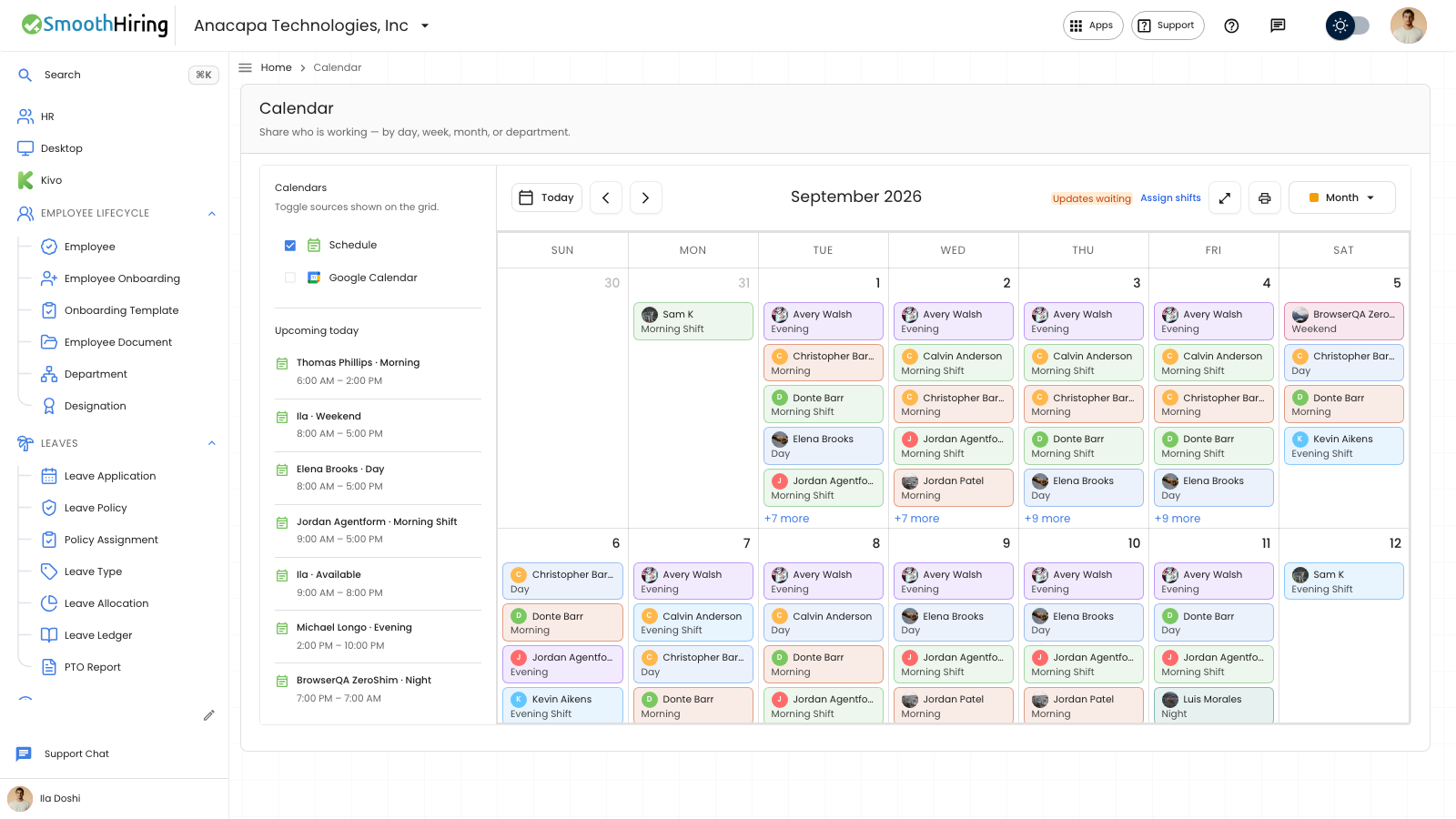
- Open Calendar under Shift & Attendance.
- Choose Month, Week, Day, or Agenda.
- Use Today, or the previous and next arrows, to move through time.
- Choose Print when you want names and shifts only. Choose Assign shifts when you need to change who works.
What you should see
The toolbar title is the month or week you are on. Beside it, the status reads Draft, Published, or Updates waiting.
Each person’s shift sits on the day they work. Schedule in the side list shows the published roster. Google Calendar or Outlook Calendar appears there only after that calendar is connected.
Full page widens the calendar. Exit full page returns to the usual layout.
If something looks wrong
The page says No staff on this calendar yet. Add people, then assign who works each day from Assign shifts.
Draft means staff cannot see that month yet. They still see the last published version while the status is Updates waiting. Make the month visible from Publish a month.