

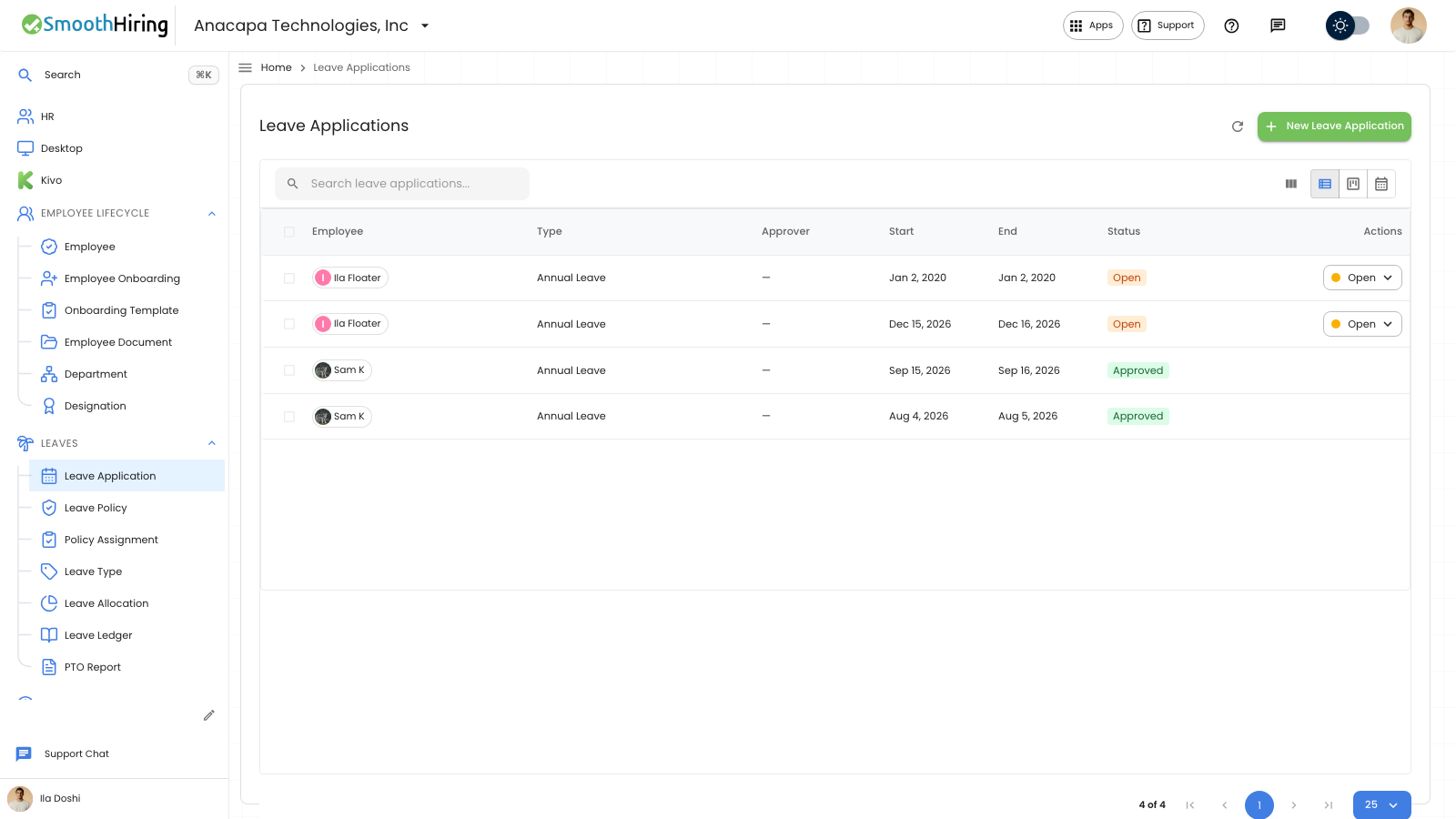
An employee cancels their own time-off request from Time off. Cancel appears under Your requests while the status is Pending or Approved.
Cancel the request
- Open Time off in the employee portal.
- Stay on Leave.
- Under Your requests, find the dates, the type, and the status.
- Choose Cancel.
You should see Leave request updated.
- A Pending request becomes Cancelled.
- An Approved request that has not started yet becomes Cancelled. The days go back to the balance.
Cancel is not on Denied, Cancelled, Taken, or Consumed.
When the manager still has to decide
If someone is asking to cancel time that was already approved, Approvals shows the dates with cancel request. The control shows Waiting, Cancel leave, and Keep leave.
- Cancel leave cancels that time off.
- Keep leave leaves the approved time in place.
If something looks wrong
If cancel fails, the notice is Failed to cancel leave, or This request can no longer be cancelled. The status stays as it was.
A request that has already started can show Taken. A request that has already been paid can show Consumed. Those rows do not offer Cancel.
On Leave Application, the desk status for a cancelled request is Cancelled. A cancel that is still waiting on a manager shows Cancellation Pending. Status on the edit dialog is read-only, so cancel from Your requests or from Approvals.
Next
Sending the request is covered in Request time off from the portal.