

Shift swaps
A person can offer a published shift or trade it for a coworker’s shift. When Swaps need a manager is on, the swap stays waiting until a scheduler approves it. Offered shifts use Offered shifts need a manager, which is separate. Approving a swap does not create pay.
- On the employee portal, open Requests, then Swap or offer.
- Choose Your shift.
- To give it away, set Offer to and choose Offer. To trade, set Swap for and choose Swap.
- The coworker chooses Approved or Declined. The person who sent it can choose Cancelled while it is still waiting.
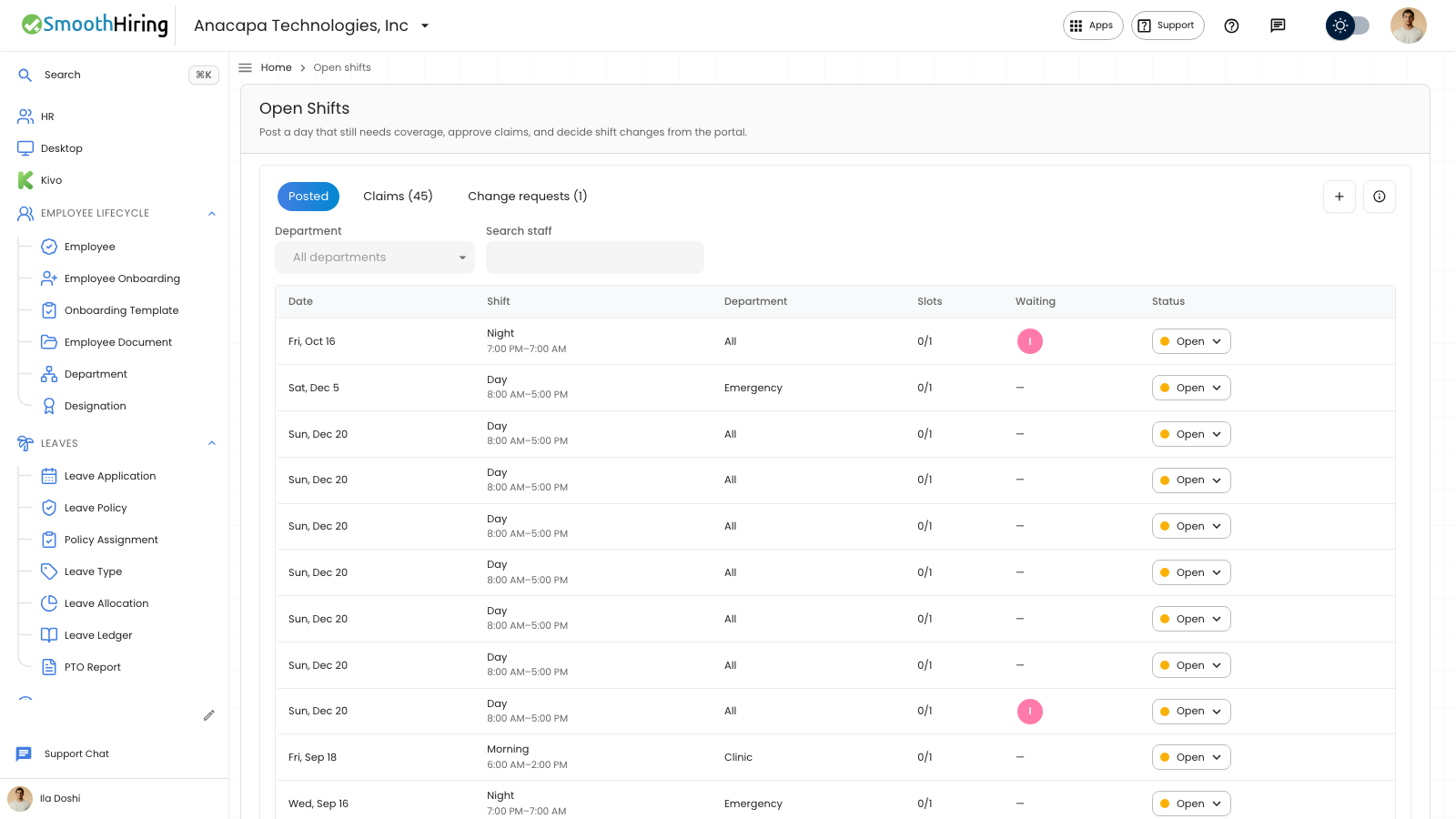
A scheduler then opens Open Shifts and the Change requests tab. When the status is Waiting on manager, choose Approved or Declined.
Swaps need a manager and Offered shifts need a manager are under Settings → Scheduling, on Schedule rules. Choose Save rules after you change them.
What you should see
The portal says the request was sent. Status can read Waiting on coworker, Waiting on manager, Approved, Declined, Cancelled, or Expired.
Only coworkers and shifts that fit both schedules are listed. An empty offer list says no coworkers are free for this shift, or that no one else is in the department yet.
On Change requests, a swap shows both people and the two shifts. An offer shows as Offer.
If something looks wrong
The portal says No published shifts, or No shift changes yet. Publish the person’s shifts first. A draft month cannot be offered or swapped.
Change requests says No change requests while nothing is waiting. Swaps and offers show there for the scheduler once they are waiting on a coworker or a manager. If Swaps need a manager is off, a coworker’s Approved finishes the swap and it leaves the waiting list.