

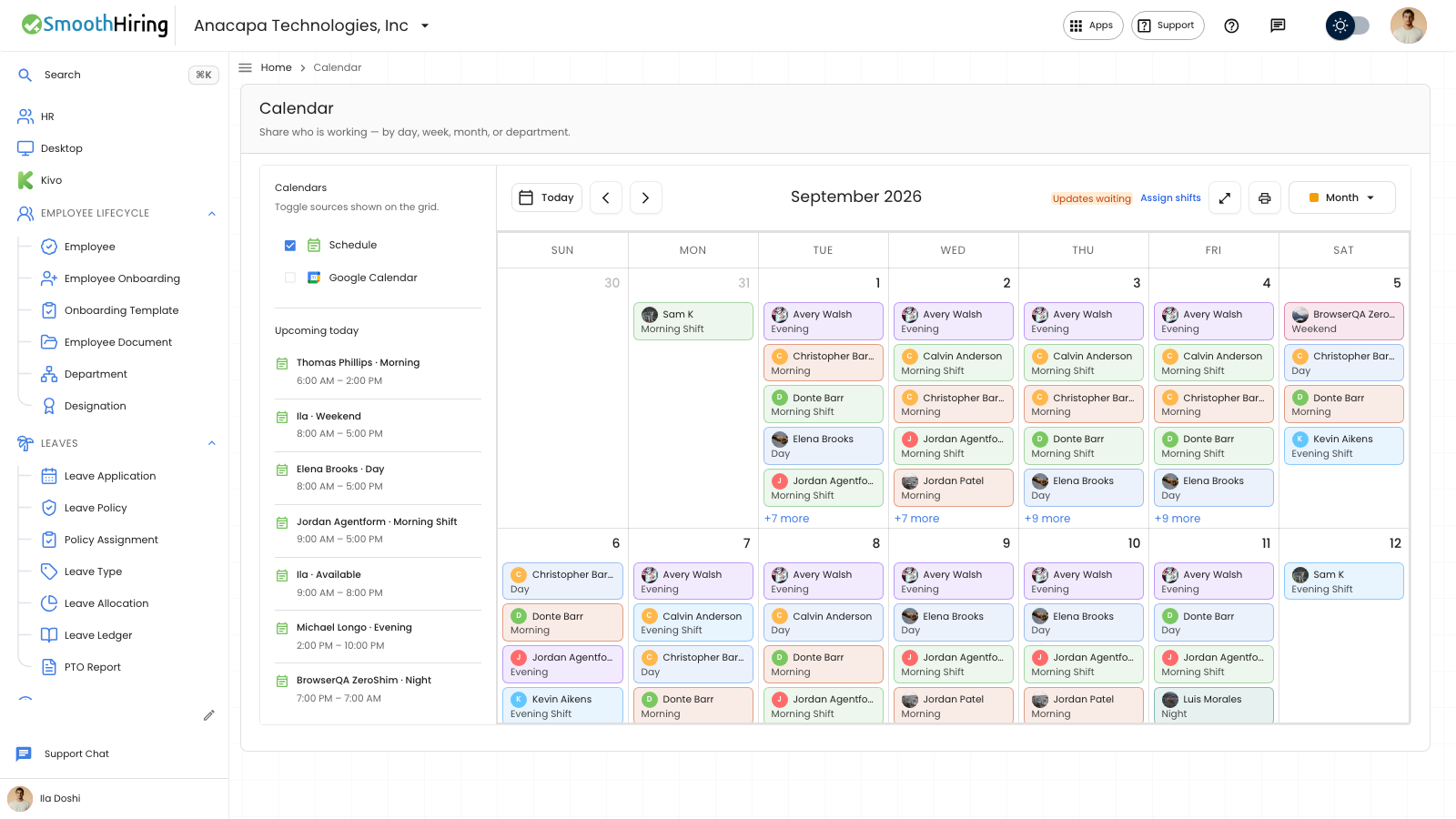
Approved time off shows on the Calendar and, for an employee, on Time off under Who's out.
On the calendar
The calendar shows the team’s time off when that setting is on.
- Open Settings, then Leave & time.
- In the Time off section, turn on Show the team’s time off on the calendar. The helper says Everyone in the same department sees who is out.
- Save. You should see Leave and time settings saved.
- Open Calendar. Approved time off appears on those days as the person’s name and the leave type. If the type has no name on the event, it reads Time off.
- Choose the event. The dialog shows the person, the leave type or Time off, and the date.
The sidebar calendar list is Schedule. Leave events are included with the schedule when Schedule is on.
If the calendar has no people at all, it says No staff on this calendar yet and Add people, then assign who works each day. Share this calendar with the team.
On Time off
- Open Time off in the employee portal.
- Stay on Leave.
- Scroll to Who's out.
Each line is a teammate in the same department who has approved time off in the next two weeks, with the dates and the type. Your own request is not in this list. A type with Hide the type on the team calendar turned on shows as Out.
When nobody else is out, the page says Nobody else on your team is out in the next two weeks.
When you are assigning shifts
On Assign shifts, a day that is already time off shows the leave type, or Leave. That day cannot take a shift. The reason is They are on leave that day. If a fill skips those days, the note says how many are time off.
If something looks wrong
If the calendar shows shifts and no time off, Show the team’s time off on the calendar is off. Turn it on under Leave & time and save again.
Who's out only lists approved time. A request that is still Pending does not appear there. A private type is listed as Out, so the name of the type stays hidden.
Next
The request itself is a Leave Application. See Request time off.