

This page is for managers. Employee Attendance Tool marks attendance for the people you select, on one date. Marking them here does not create pay.
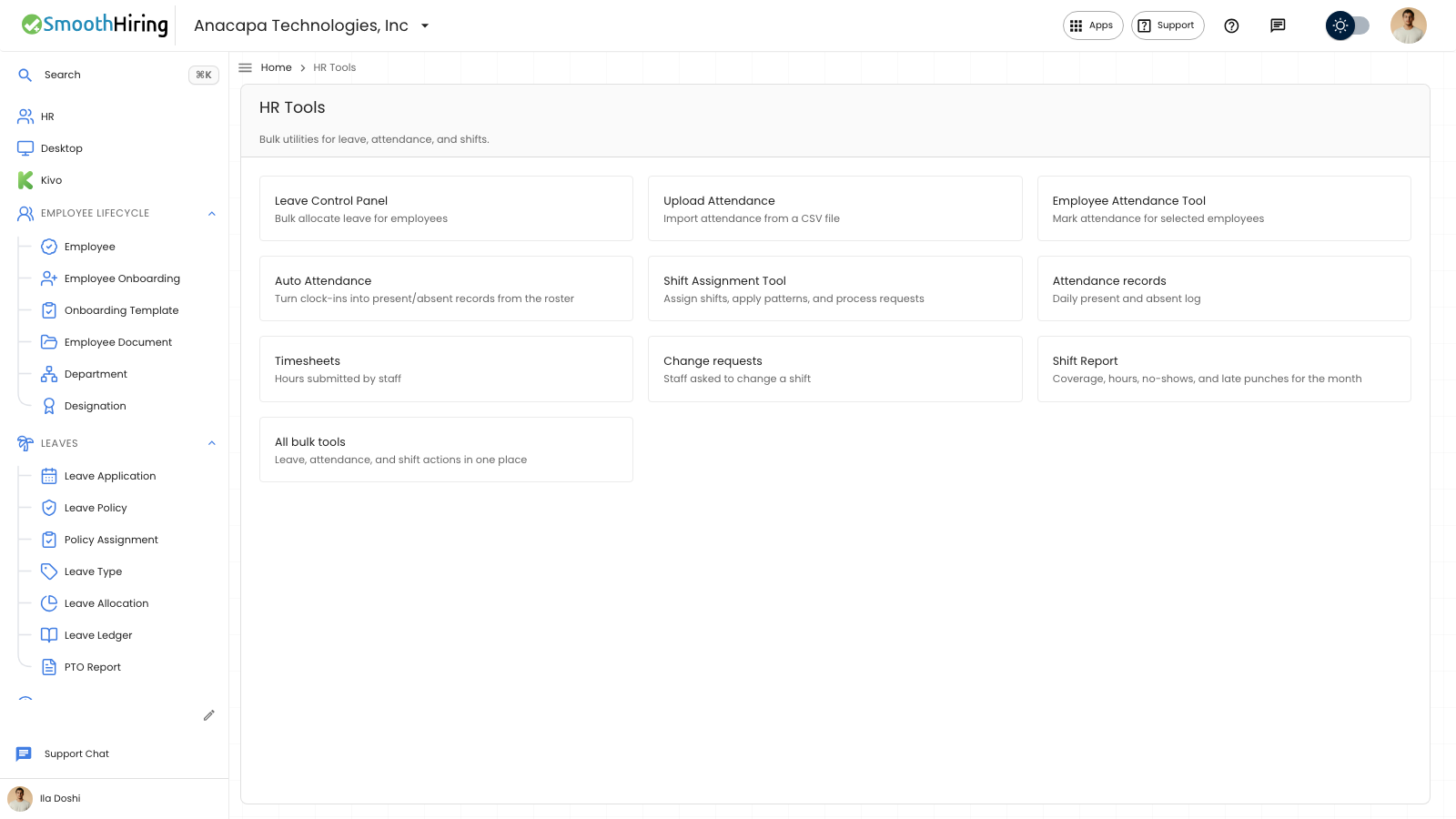
- Open HR Tools, then Employee Attendance Tool. The card says Mark attendance for selected employees.
- Under Employees, use Search employees and select the people. The caption shows how many are selected.
- Set Date and Status.
- Choose Mark Attendance.
What you should see
The page title is Employee Attendance Tool. The subtitle is Select employees and mark attendance for a date. The side note says Tool and Employee Attendance.
Status is Present, Absent, Half Day, Work From Home, or On Leave.
After it saves, the notice is Marked attendance for the number of employees. Those rows then show on Attendance records, with Recorded by as Entered.
If something looks wrong
Mark Attendance stays off until at least one person is selected and Date is set.
If nobody is in the list, the page says No employees yet and offers New Employee. If a search has no match, it says No employees match your search.
If the request fails, the notice is Mark attendance failed. The people stay unmarked.
This is separate from a clock check-in and from Build attendance from clock-ins.