

Desktop
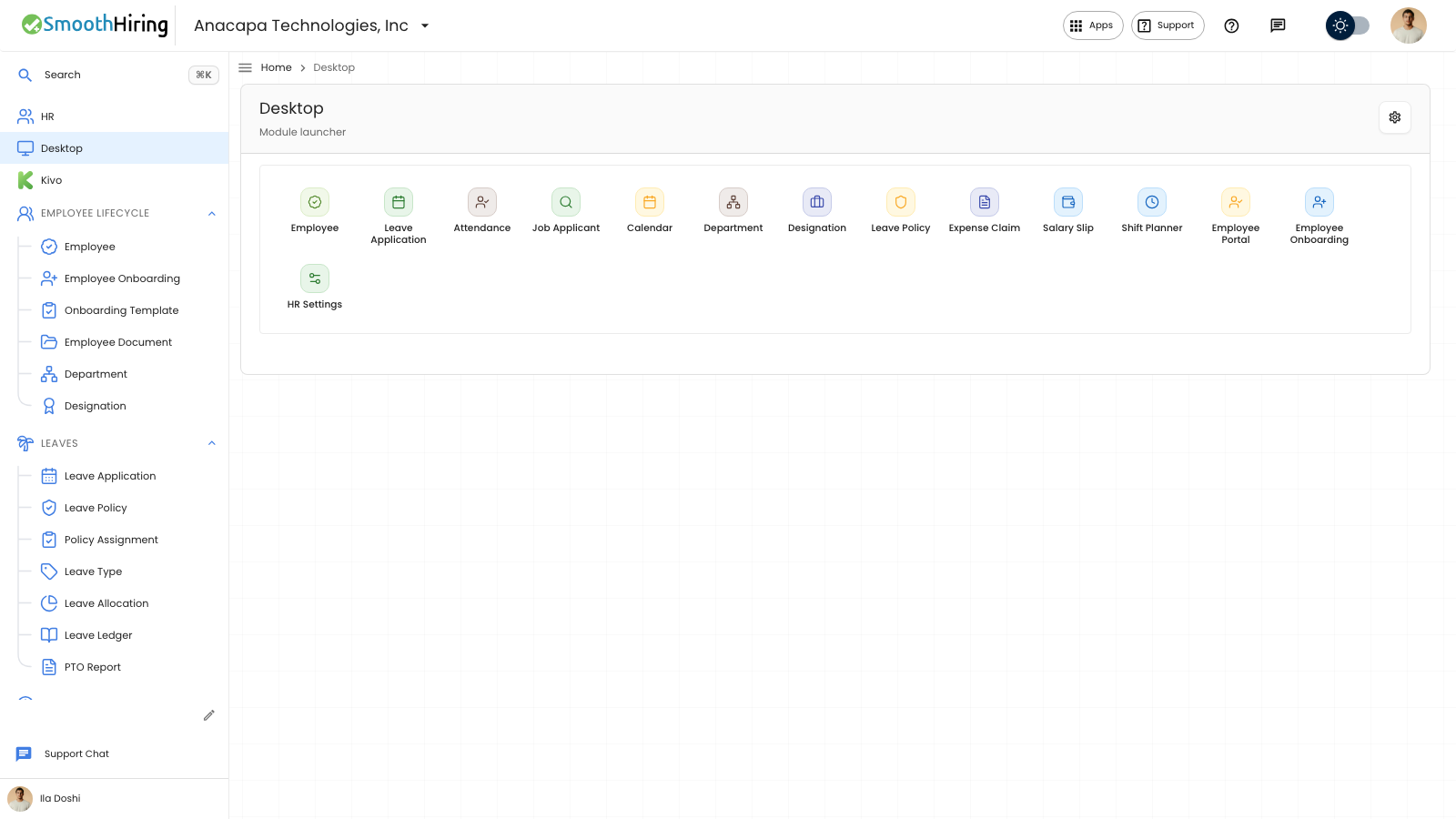
Desktop is the launcher in the sidebar. It is a grid of tiles. Click a tile to open that page. Attendance and clocking do not create pay. Opening Salary Slip from here does not generate a slip.
- In the sidebar, choose Desktop. The title is Desktop. The subtitle is Module launcher. It adds “(your layout)” or “(company default)” when a saved layout is in use.
- Click the tile you need.
The usual tiles are Employee, Leave Application, Attendance, Job Applicant, Calendar, Department, Designation, Leave Policy, Expense Claim, Salary Slip, Shift Planner, Employee Portal, Employee Onboarding, and HR Settings. Shift Planner opens Assign shifts.
- To show or hide tiles for your account, click Customize. Click a tile. It shows Visible or Hidden.
- Click Save. Click Reset to put the launcher back. Click Cancel to leave without saving.
What you should see
Visible tiles stay on the grid after you save. A note says “Desktop layout saved for your account.” Reset says “Desktop layout reset.” Hidden tiles stay off the grid until you customize again and set them to Visible.
Account settings, including Employee portal and App layout, stay under Settings in the sidebar.
If something looks wrong
“Could not save desktop layout” means the grid did not change. Click Save again.
“Could not reset desktop layout” means the previous tiles are still there. Click Reset again.
A hidden tile is missing because it was marked Hidden. Click Customize, click that tile until it says Visible, then click Save.