

Who can clock in
Employment types that clock in are the people asked to clock in. Contractors are never required. Clocking in does not create pay, and publishing a schedule does not create pay.
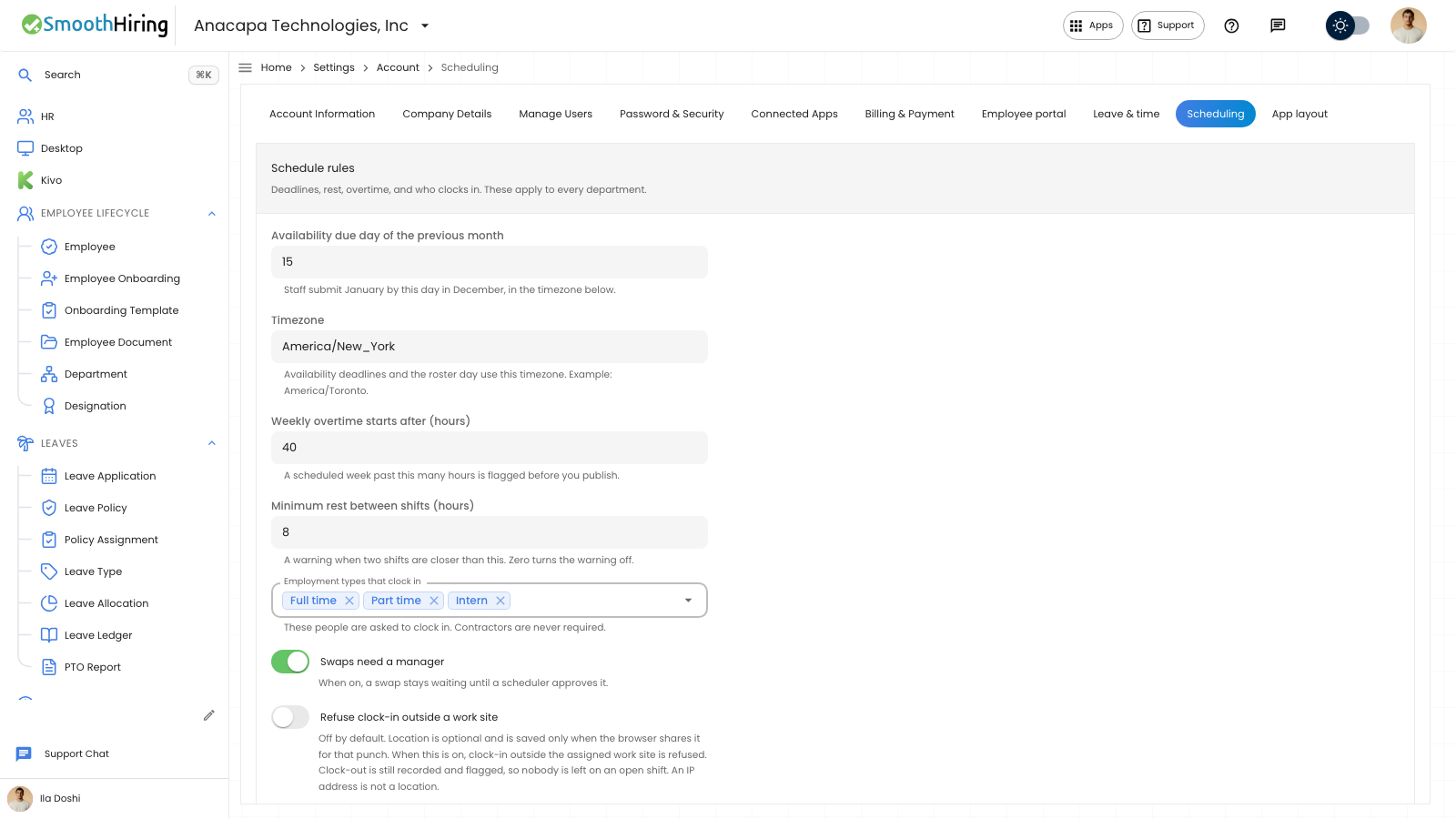
- Open Settings, then Scheduling.
- Under Schedule rules, open Employment types that clock in.
- Choose the types that should clock in: Full time, Part time, Contract, Temporary, or Intern.
- Choose Save rules.
People on the employee portal use Check in and Check out when the time clock is on for them. At a shared desk they use Clock station and confirm before a punch is recorded.
What you should see
The field lists the types you saved. The helper says these people are asked to clock in, and contractors are never required.
After Save rules, the confirmation says Scheduling settings saved.
If something looks wrong
Someone does not see Check in. Their employment type is not in Employment types that clock in, or they are a contractor. Add the type and choose Save rules, or use the portal only for people who are asked to clock in.
Choosing Contract in the list is not the same as a contractor who is never required. Read the helper under the field before you save.