

Who schedule email comes from
Schedule email can come from SmoothHiring, or from a connected Gmail or Outlook address. This does not publish a month by itself, and publishing does not create pay.
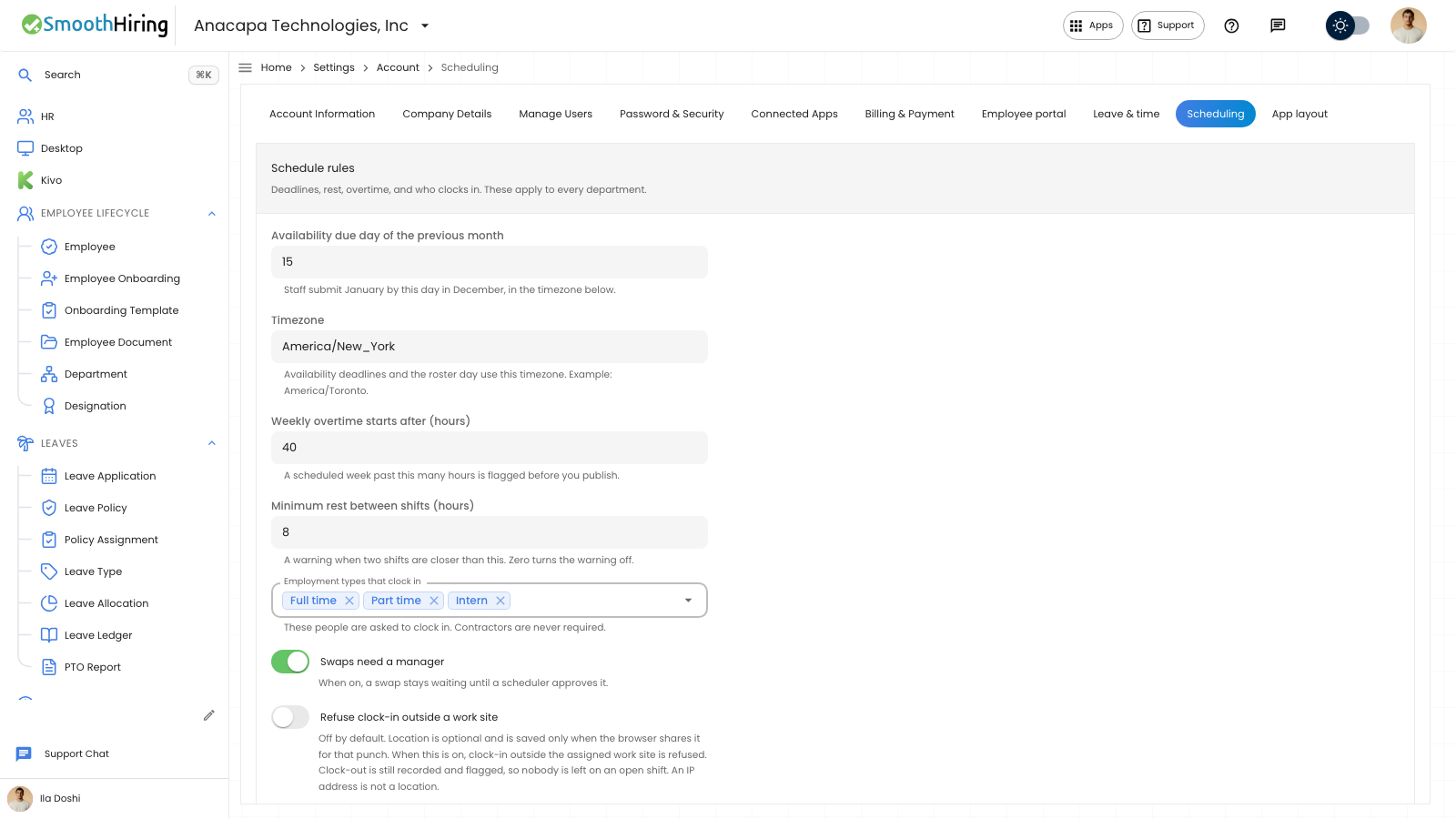
- Open Settings, then Scheduling.
- Under Staff email, leave Email assigned staff when you publish on if assigned people should get a link when you publish. You can turn it off for a single publish later.
- Open Send from. SmoothHiring uses do-not-reply@smoothhiring.com. Choose Gmail or Outlook only after that mailbox is connected. If it is not connected, that choice opens connected apps.
- Choose Save email.
Connect Gmail or Outlook sits under Send from while either mailbox is not connected.
What you should see
The helper says replies go to the company owner’s email. Gmail and Outlook send from the connected address once you connect them. A connected mailbox shows that address in the list.
After Save email, the confirmation says Staff email saved.
If something looks wrong
Send from still shows SmoothHiring. Gmail or Outlook says Connect to send from your address until that mailbox is connected. Use Connect Gmail or Outlook, then come back and choose it.
Staff did not get a message. Email assigned staff when you publish may be off, or you turned Email assigned staff off in the publish dialog. Publishing with the switch on is what sends the link. Choosing Save email alone does not publish the month.