

This page is for managers. Auto Attendance turns clock-ins into present or absent for people on the schedule. It does not create pay.
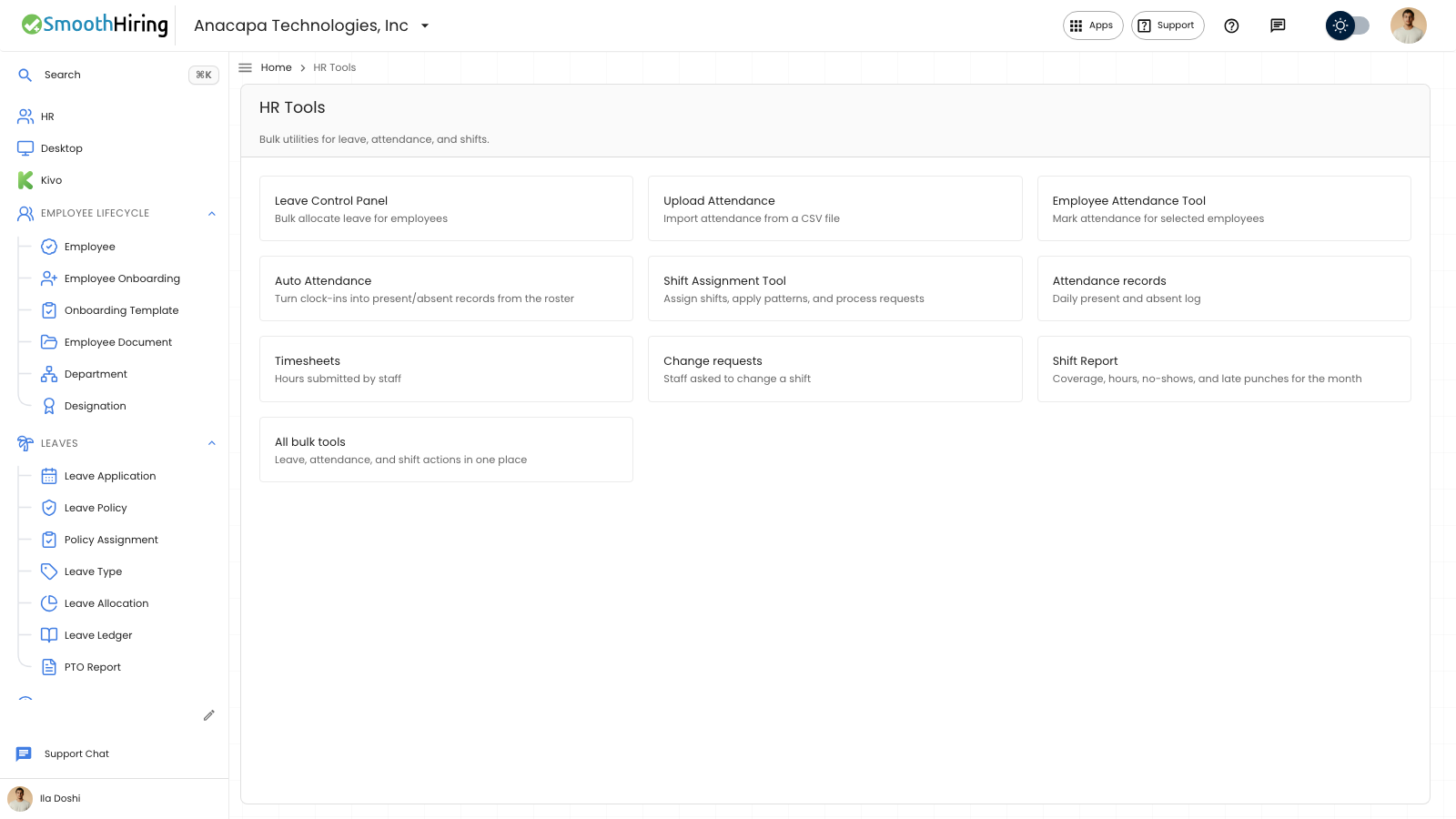
- Open HR Tools, then Auto Attendance. The card says Turn clock-ins into present/absent records from the roster.
- In Run, set Date.
- Choose Run for date.
On the shift type, turn on Enable Auto Attendance before you run. The page links to shift type for the grace minutes, late and early rules, and half-day thresholds. After a run, the same page links to Shift Report for no-shows and late punches.
What you should see
The page title is Auto Attendance. The subtitle says it builds daily present and absent records from clock-ins for people who are on a shift type with Auto Attendance enabled.
While it runs, the button says Processing…. The notice is Auto attendance for the date, then how many are present and how many are absent.
Last run then lists the date, present, absent, skipped (no shift), skipped (auto attendance off), and kept (set by HR).
People without an assigned shift are skipped. A row someone already entered is kept.
If something looks wrong
Run for date stays off until Date is set. If the run fails, the notice is Auto attendance failed.
Skipped (auto attendance off) means Enable Auto Attendance is off on that shift type. Skipped (no shift) means that person was not assigned a shift that day. Kept (set by HR) means a person already marked that day, and this run left it.
A clock-in on employee home is still not pay, and this run does not become pay either. Review the rows on Attendance records.