

This page is for managers. Timesheets are hours submitted by staff. They are separate from the check-in on employee home, and a timesheet is not pay.
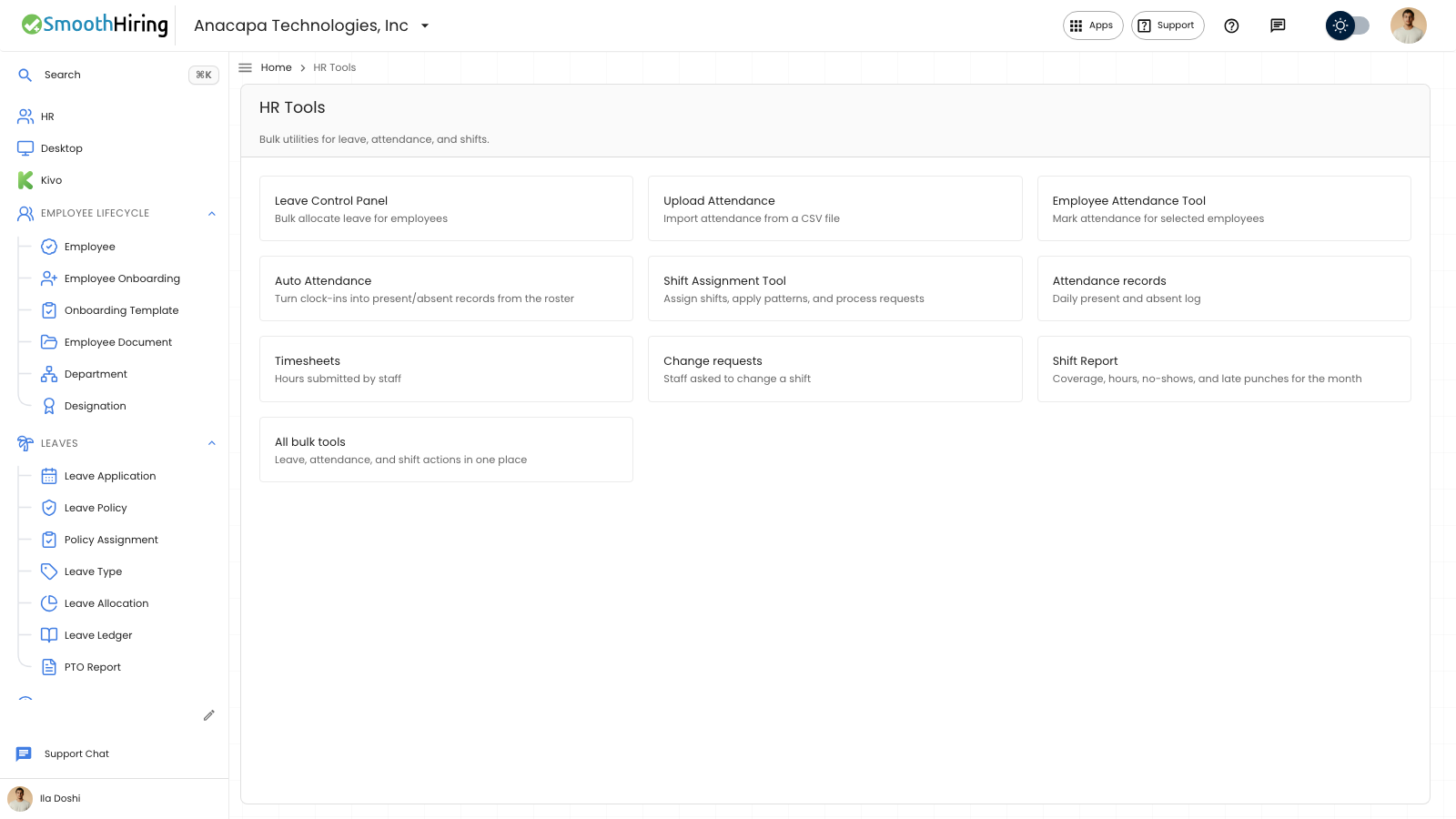
- Open HR Tools.
- Open Timesheets. The card says Hours submitted by staff.
- Read the list, or choose New Timesheet to add one.
What you should see
The list is titled Timesheets. Search says Search timesheets.... Columns are Employee, Start, End, Hours, and Status.
Status is Draft, Submitted, Approved, or Cancelled.
A new timesheet asks for the employee, Start Date, End Date, Status, and Notes. Total Hours is filled from the rows under Time Logs. Each Timesheet Detail row has Activity, From, To, Hours, Project, Task, and Description. The button is Create Timesheet. After it saves, the notice is Timesheet created. On a saved sheet, the button is Save, and the notice is Changes saved.
If something looks wrong
An empty list is titled No timesheets yet and says Create your first timesheet to start using this list. The action is New Timesheet.
Create Timesheet needs the required dates. If save fails, the notice is Save failed. Your edits are still here.
Clock check-ins stay on the employee home chip and, when you build them, on Attendance records. They do not appear here as timesheet hours until someone enters a timesheet.
See Attendance records.