

Review a change request
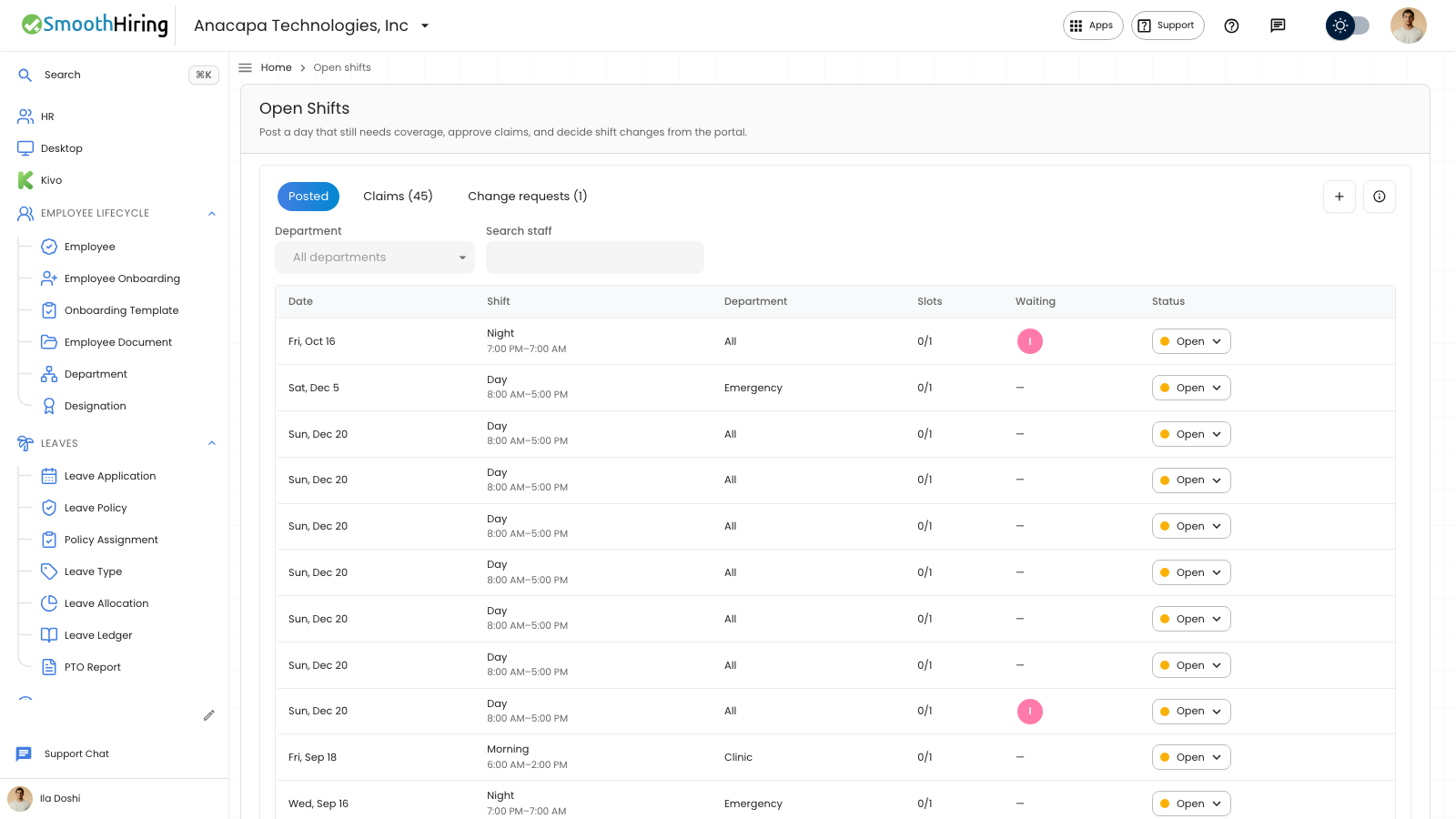
A manager reviews change requests on Open Shifts. These are staff asking to change a shift. Publishing a schedule does not create pay.
- Open Open Shifts.
- Open Change requests. The tab shows a count while requests are waiting.
- Read Staff, Shift, Requested, and Change. The change line says what the new shift replaces.
- On a row that says Waiting on manager, set Status to Approved or Declined.
Swaps and offers show on this list once the coworker has accepted. An offer or swap that is still Waiting on coworker is decided by that coworker first. See Offered shifts.
What you should see
Approving a shift change says On the roster. Declining says Declined.
An empty list says No change requests, and When someone asks to change a shift from the portal, it shows up here with what it replaces. Swaps and offers land here once the coworker accepts.
If the change conflicts with a warning, the dialog title is Approve this change? Choose Approve anyway to place it, or Close to leave it waiting.
An extra-hours row says Extra hours. Setting that row to Approved opens Approve extra hours, with the scheduled shift, the hours they asked for, Start, End, and Approve. If you change the times, the button reads Approve adjusted hours. The confirmation says Hours updated on the roster.
If something looks wrong
A clash that cannot be placed is titled This clashes with their schedule, and says Change the roster first, or decline. Close is the action. A failed shift-change approval says Could not approve this request. A failed decline says Could not decline this request. A failed swap or offer approval says Could not approve. A failed decline of that row says Could not decline.
A shift-change row whose date has passed offers Declined. Approved and Declined rows stay in the list on that status.