

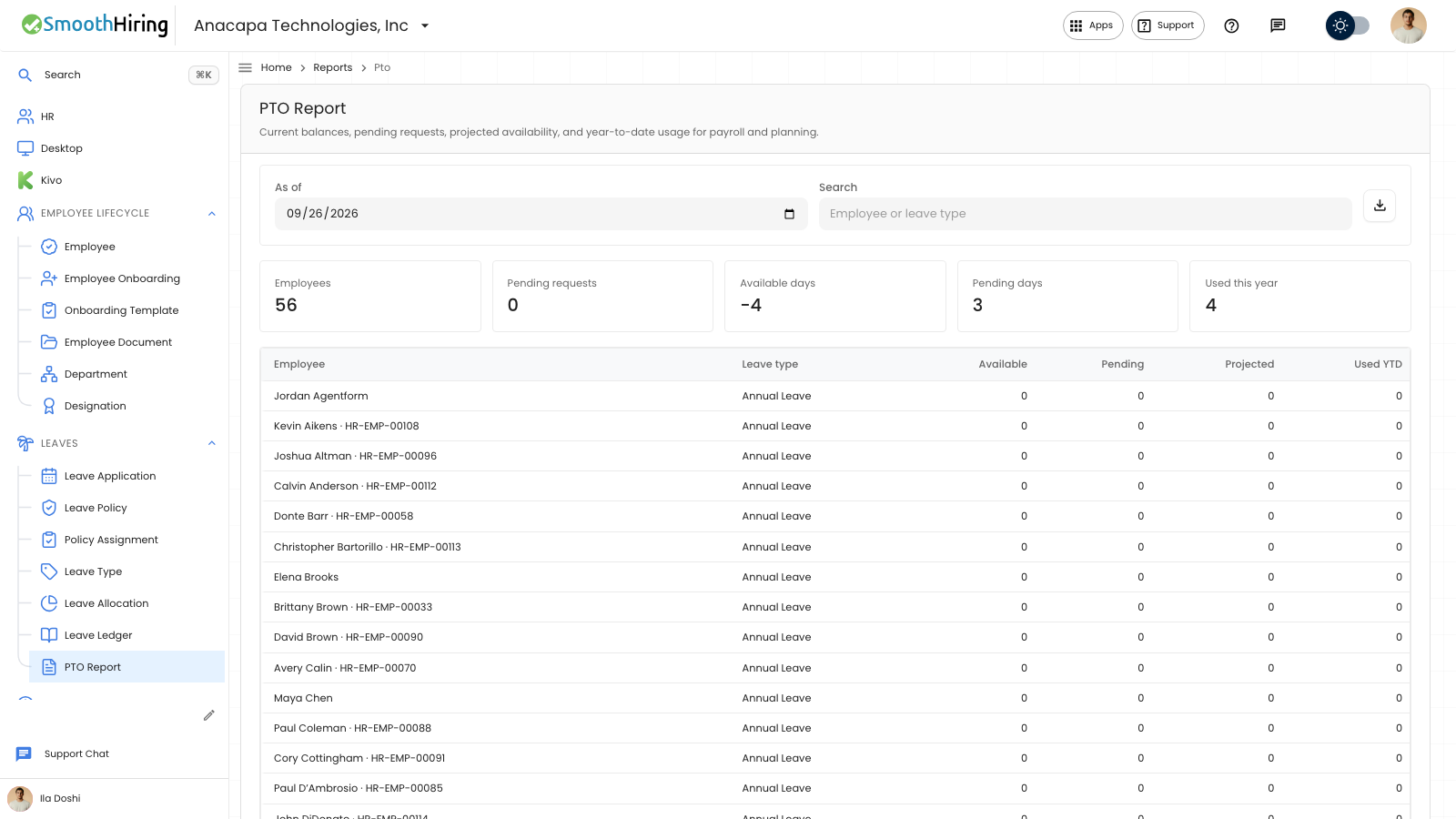
A balance is the time an employee can still take. Pending requests stay in that number until they are approved. Projected is what would remain after those waiting requests. See Projected balance.
On Time off
- Open Time off in the employee portal.
- Stay on Leave.
- Read Balances. Each type shows how many days are left. An unlimited type shows Unlimited.
When a request is already waiting, the same line adds pending and projected days. The page says Pending requests are not taken off your balance until they are approved.
If there is no balance, the page says No leave balance yet. Ask HR to allocate leave before you request time off.
On Leave Allocation
- Open Leaves, then Leave Allocation.
- Find the employee. Columns are Employee, Leave Type, Allocated, Used, and Status.
- Allocated is the time given for the period. Used is the time already taken. Status is Active, Expired, or Cancelled.
Open a row to see From Date, To Date, and Carried Forward.
An empty list says No leave allocations yet and Assign leave balances to employees for each period.
On PTO Report
- Open Leaves, then PTO Report.
- Set As of.
- Read Available for that person and leave type. An unlimited type shows Unlimited.
The totals above the table include Available days.
If something looks wrong
A person missing from PTO Report has no policy assignment and no allocation. The empty page says No PTO balances found and Assign a leave policy or allocate an opening balance to include employees in this report.
Available does not drop when a request is only waiting. That drop is Projected.
Next
To give the same number of days to many people, see Allocate time off for many people. Each change is listed on Leave ledger.