

See coverage
Coverage on Shift Report is who is scheduled against the days you still need filled. It is not payroll. Publishing and clocking do not create pay.
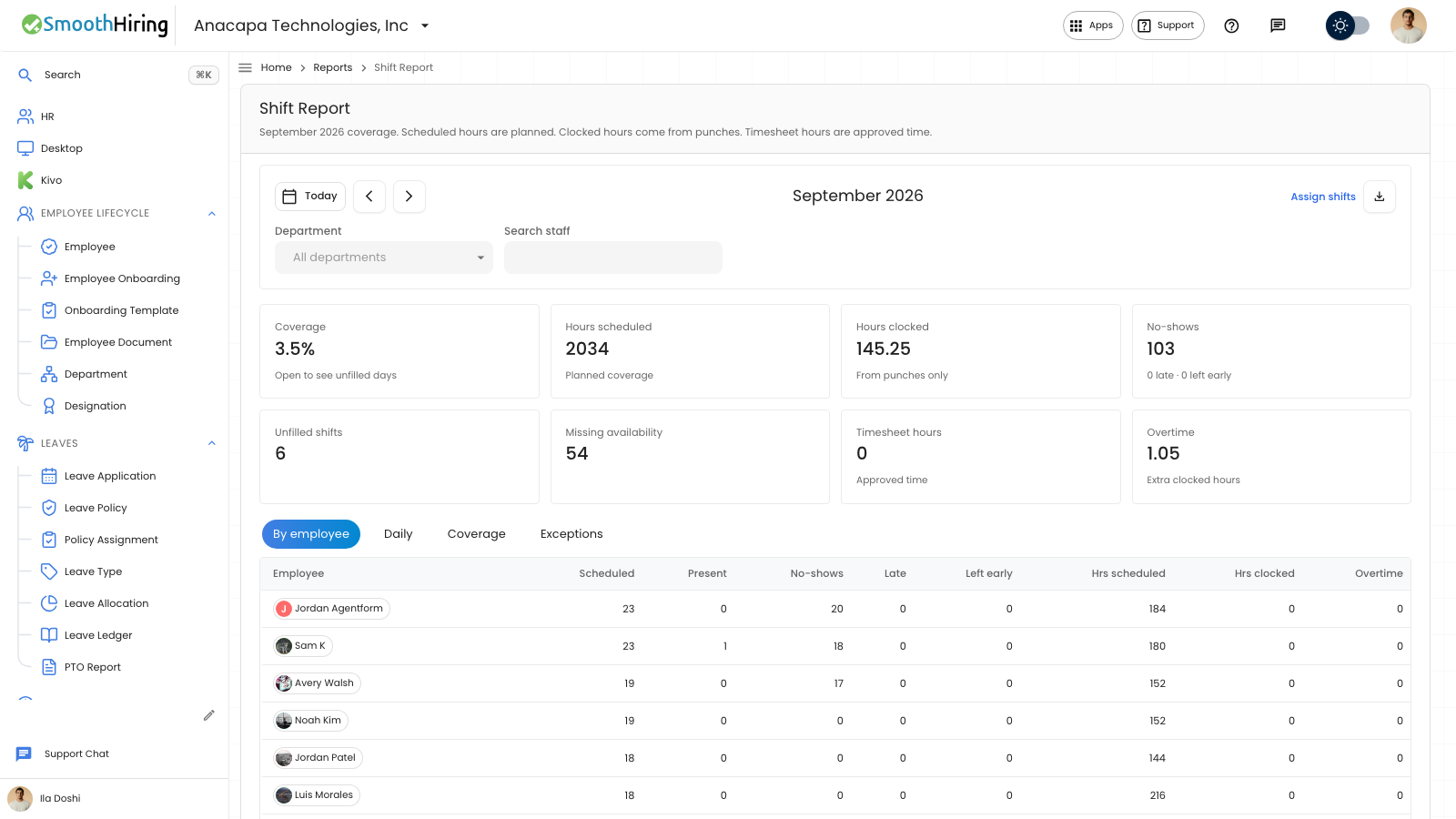
- Open Shift Report, or on Assign shifts open More and choose Coverage.
- Move to the month, and set Department if you want one team.
- Choose the Coverage card to open the unfilled days, or open the Coverage tab.
- On Coverage by day, choose Coverage targets to say how many people each shift needs, then choose Save.
What you should see
The Coverage card shows a percent, or a dash when there is nothing to measure. Under 80 percent it warns. The footer says to open it to see unfilled days.
The Coverage tab lists Coverage by day. With targets saved, the caption counts shifts that are short and open shifts that are still unclaimed. Without targets, the page says to set how many people each shift needs to see which days are short.
Unfilled shifts on the same report is the count of open slots.
If something looks wrong
The tab says No shifts this month. Assign people on Assign shifts, or pick another month.
Could not load coverage means the tab did not finish loading. Stay on the month and open Coverage again.