

Approve a claim
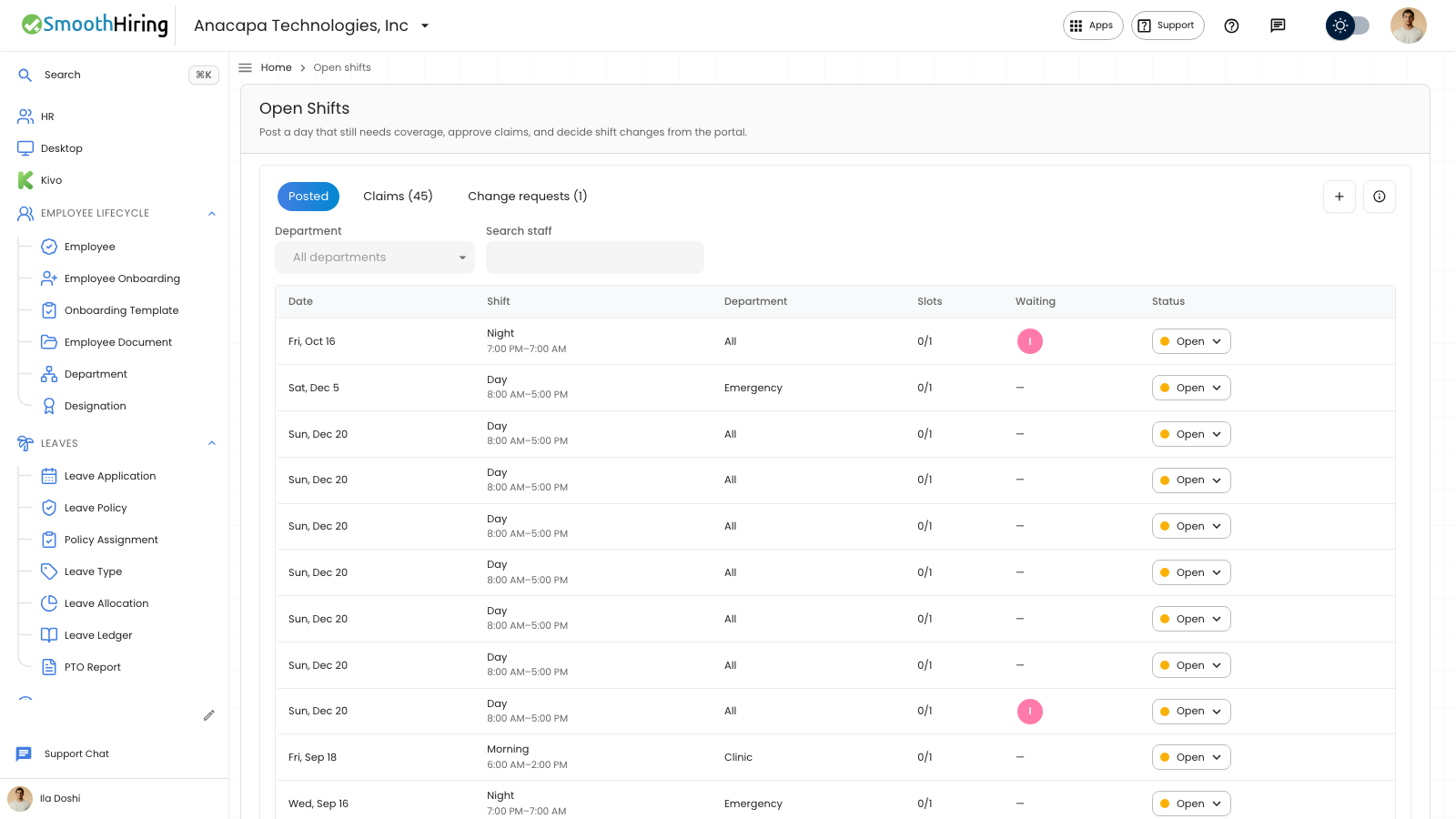
A manager approves a claim on Open Shifts. Approving puts that person on the roster. Publishing a schedule does not create pay.
- Open Open Shifts.
- Open Claims. The tab shows a count while claims are waiting.
- Find the person, date, and shift. Status reads Waiting.
- Set Status to Approved.
Optional: narrow the list with Department (All departments) or Search staff.
What you should see
The confirmation says On the roster. Approved claims stay in this list. The posted shift’s slots filled count goes up, and that person leaves the Waiting faces on Posted.
An empty list says No claims yet, and When someone claims a posted shift, approve them here to put them on the roster. Approved claims stay in this list.
If the day conflicts with a warning, the dialog title is Approve this claim? Approve anyway places them. Close leaves the claim waiting.
If something looks wrong
A past day says Choose today or a later day. Approved is not offered for that claim. Declined still is.
A clash that cannot be placed is titled This clashes with their schedule, and says Change the roster first, or decline. Close is the action on that dialog. A failed approval says Could not approve this claim.
See Decline a claim to turn the claim down.