

This page is for employees. Schedule is your published shifts, time off, and holidays.
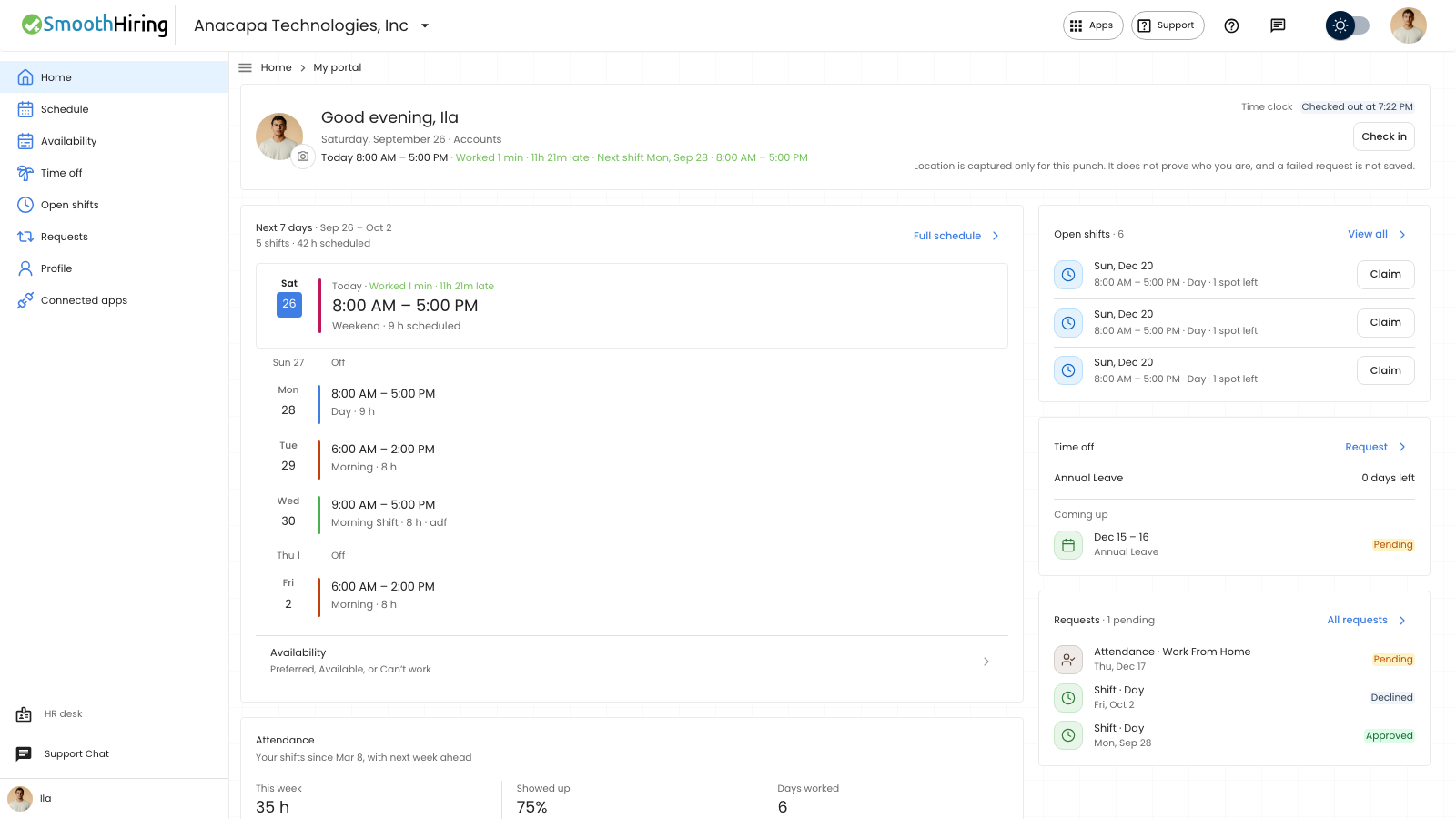
- Open Employee Portal, then Schedule. You can also choose Full schedule on Home, under Next 7 days.
- Choose Today, Previous period, or Next period. Open the view menu and choose Month, Week, Day, or Agenda.
- On a wide screen, use On this calendar to choose what appears.
What you should see
The page title is Schedule. The subtitle is Your published shifts, time off, and holidays.
On this calendar says Choose what appears on your schedule. The list can include Shifts, Time off, Holidays, and Late or missed. Google Calendar and Outlook Calendar appear after you connect them. Each line shows how many fall in this period.
Today lists what is on today. If the day is empty, it says Nothing scheduled today and Your next shift will appear here.
A month that is still a draft shows This month is still a draft. Your confirmed shifts appear here after a scheduler publishes.
Open a day or an item to read it. Close leaves that view. Open day view switches the calendar to that day. Join meeting appears only when the item has a meeting link. Connect Google or Outlook goes to Connected apps when neither calendar is connected.
If something looks wrong
The draft message means the scheduler has not published that month. Confirmed shifts appear after they publish. Home can say HR hasn’t published this schedule yet.
A day with no shift can still allow Check in. The schedule line and the time-clock chip are separate.
If Schedule is missing from the side navigation, the schedule is turned off for this portal.
See Employee home.